You open a terminal, type sftp user@host, and then your memory goes blank. Is it ls or dir? How do you change the local directory versus the remote one? How do you upload a whole folder?
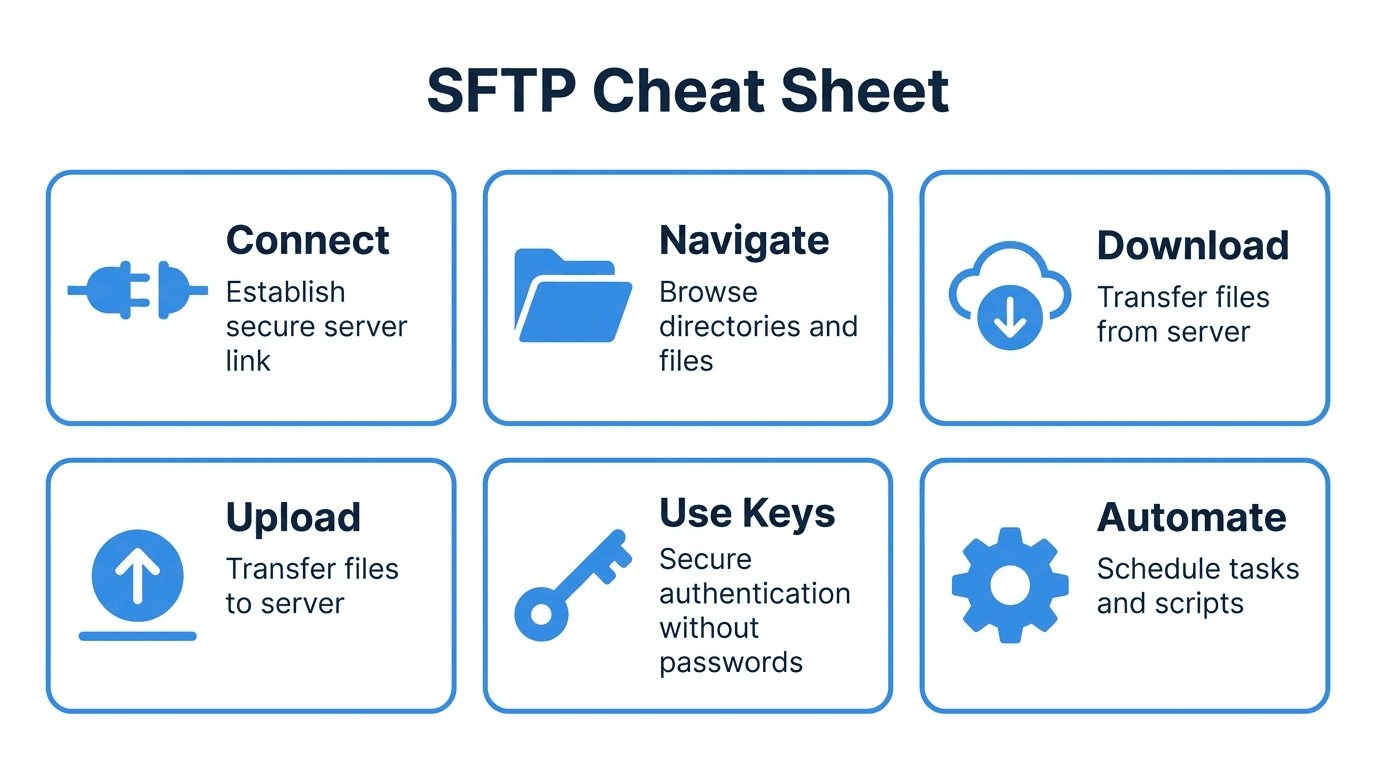
This is a working reference for the sftp command-line client that ships with OpenSSH on Linux, macOS, and Windows 10/11. Every command below is copy-paste ready. Bookmark it, because the interactive SFTP prompt is the same everywhere and these commands do not change.
If you are still fuzzy on what SFTP actually is, start with What Is SFTP? and come back. Everything here assumes you have a server, a username, and either a password or an SSH key.
Connecting
The basic connection form is sftp username@hostname. Once connected, you land at an sftp> prompt.
# Connect on the default port (22)
sftp user@sftp.example.com

# Connect on a custom port (note the capital -P)
sftp -P 2222 user@sftp.example.com

# Connect with a specific private key
sftp -i ~/.ssh/id_ed25519 user@sftp.example.com

# Connect and drop straight into a remote directory
sftp user@sftp.example.com:/uploads
A few things that trip people up:
- Port flag is capital
-Pinsftp, but lowercase-pinsshandscp. They are not interchangeable. - The
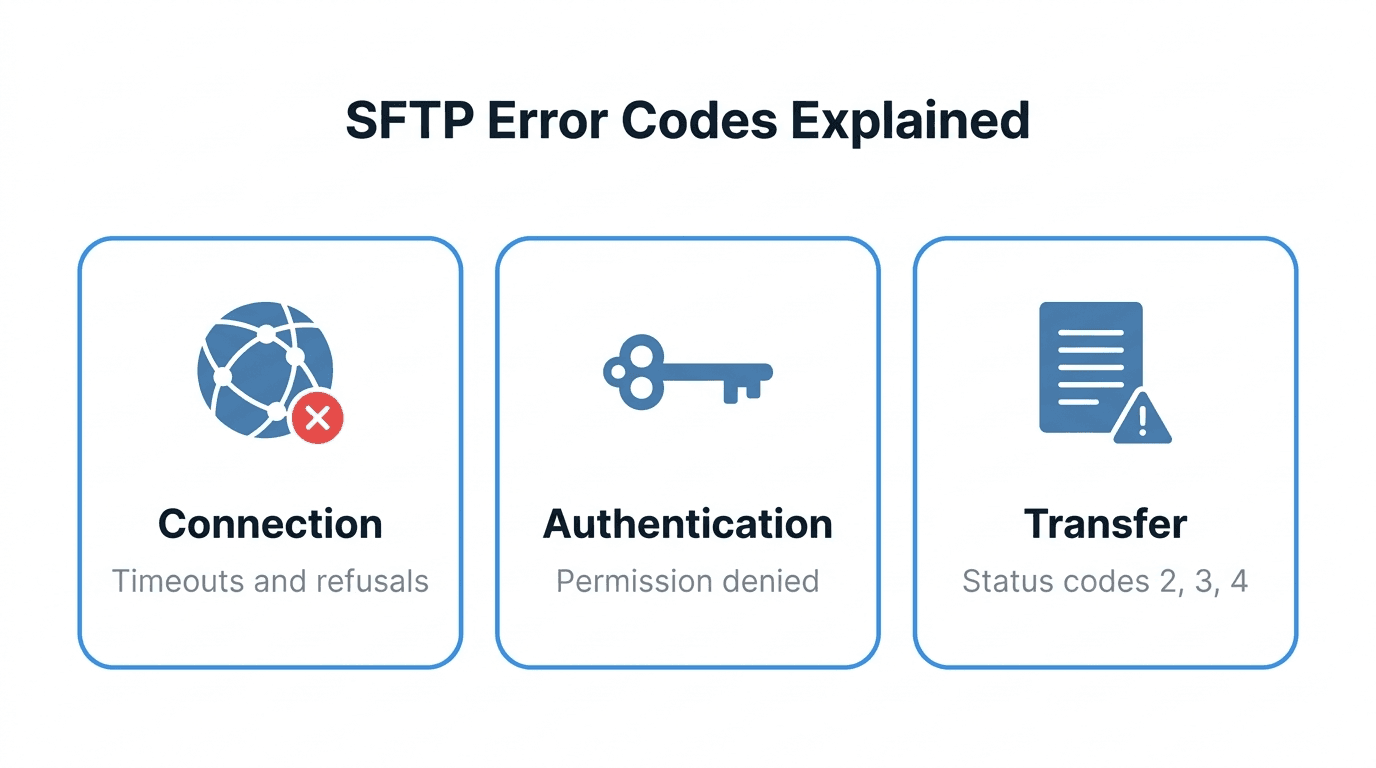
-iflag points to your private key, not the public one. The public key lives on the server. - Connection refused usually means the wrong port or a firewall. Permission denied (publickey) means the key or username is wrong. See SSH Keys for SFTP if keys are giving you trouble.
To see exactly what is happening during a failed connection, add verbose output:
sftp -vvv user@sftp.example.com
Navigating: remote vs local
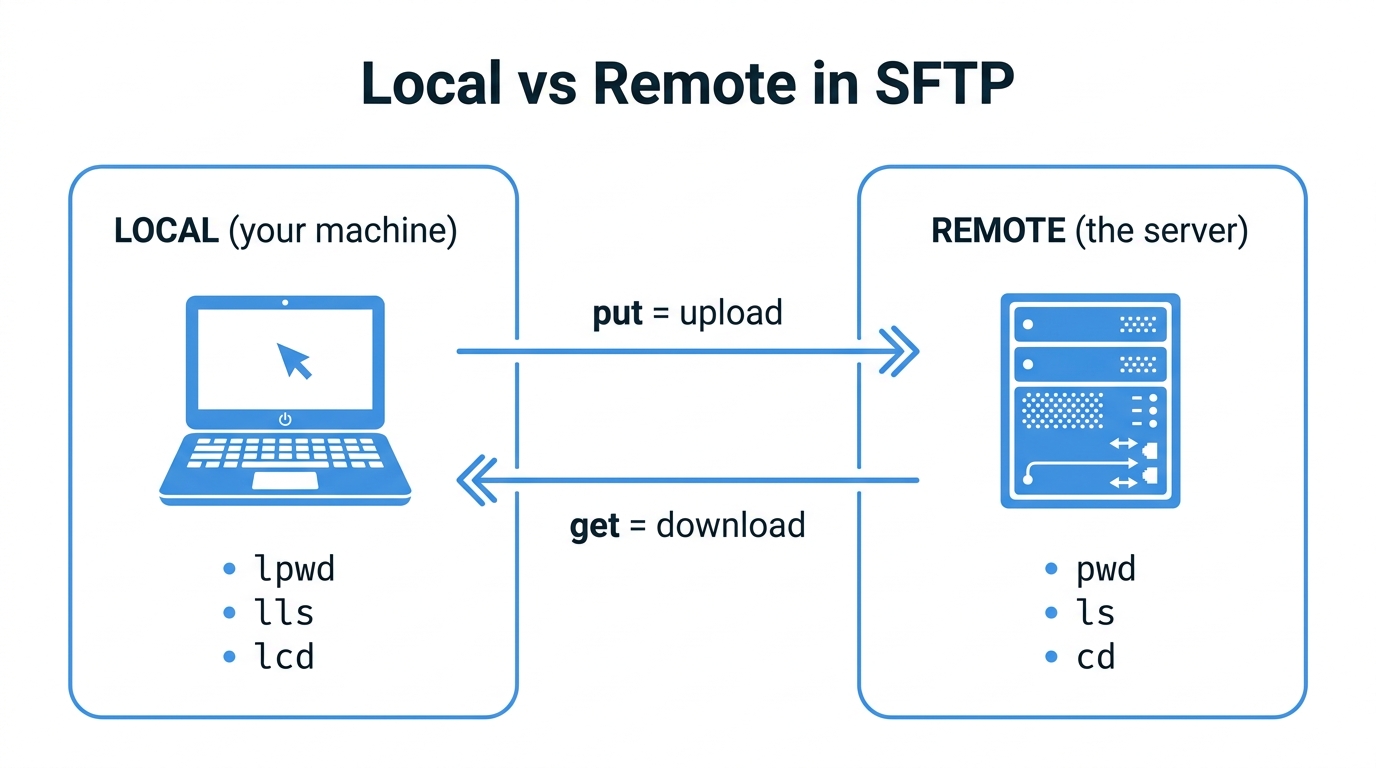
This is the single most confusing part of SFTP. You have two working directories at once: the remote one on the server, and the local one on your machine. Most commands act on the remote side. The local equivalents are prefixed with l.
# Remote (on the server)
pwd          # print remote working directory
ls           # list remote files
ls -la       # list remote files, long format, including hidden
cd uploads   # change remote directory
cd ..        # go up one remote directory

# Local (on your machine)
lpwd         # print local working directory
lls          # list local files
lcd ~/Downloads   # change local directory
A simple way to remember it: plain commands are remote, and the l prefix means "local." So cd moves you around the server, and lcd moves you around your own machine. Setting lcd before a download decides where files land.
Downloading files
get pulls files from the server to your local machine.
# Download a single file to the current local directory
get report.csv

# Download and rename
get report.csv local-report.csv

# Download into a specific local folder
get report.csv /home/me/data/

# Download an entire directory (recursive)
get -r /exports

# Download preserving timestamps and permissions
get -p report.csv
To grab several files at once, use mget with a wildcard:
mget *.csv
mget 2026-*.json
Uploading files
put is the mirror of get: it pushes files from local to remote.
# Upload a single file
put invoice.pdf

# Upload and rename on the server
put invoice.pdf 2026-invoice.pdf

# Upload into a specific remote folder
put invoice.pdf /incoming/

# Upload an entire directory (recursive)
put -r ./batch

# Upload multiple files with a wildcard
mput *.xml
Managing remote files and folders
You can do basic file management without leaving the SFTP session.
mkdir archive          # create a remote directory
rmdir archive          # remove an empty remote directory
rm old-file.csv        # delete a remote file
rename a.txt b.txt     # rename or move a remote file
chmod 640 secret.txt   # change remote file permissions
chown 1001 file.txt    # change remote owner (if permitted)
df -h                  # show remote disk usage (if supported)
Note that rm does not delete directories and there is no recursive rm -r in the standard SFTP client. To remove a folder, empty it first, then rmdir.
Using private keys
Key-based access is the standard for production SFTP. If you have not set up keys yet, the short version is:
# Generate a modern key pair (Ed25519 is recommended)
ssh-keygen -t ed25519 -C "you@example.com"

# Connect using the private key
sftp -i ~/.ssh/id_ed25519 user@sftp.example.com
If the server rejects your key with Permission denied (publickey), check that:
- The public key (
id_ed25519.pub) is installed on the server, usually in~/.ssh/authorized_keys. - Your private key file has tight permissions. SSH refuses keys that are too readable:
chmod 600 ~/.ssh/id_ed25519
- You are connecting as the right username. The key authorizes a specific account.
For the full walkthrough, see SSH Keys for SFTP: A Beginner's Guide and SFTP Authentication Methods Explained.
Non-interactive and scripted transfers
The interactive prompt is fine for one-off work. For automation, you want the transfer to run without a prompt.
Run a single command and exit with batch mode:
# Upload one file and quit, no interactive session
echo "put report.csv /incoming/" | sftp -b - user@sftp.example.com
Run a batch file of multiple commands:
# commands.txt contains one SFTP command per line
sftp -b commands.txt user@sftp.example.com
A commands.txt might look like:
cd /incoming
put *.csv
get /outgoing/ack.txt
bye
Batch mode (-b) requires key-based auth because it cannot stop to ask for a password. For anything more involved than a few lines, reach for a scripting language. See How to Automate SFTP File Transfers with Python and Automating File Transfers with Cron.
Quick reference table
| Goal | Command |
| --- | --- |
| Connect | sftp user@host |
| Connect on custom port | sftp -P 2222 user@host |
| Connect with a key | sftp -i ~/.ssh/key user@host |
| List remote files | ls |
| List local files | lls |
| Change remote dir | cd path |
| Change local dir | lcd path |
| Download a file | get file |
| Download a folder | get -r folder |
| Upload a file | put file |
| Upload a folder | put -r folder |
| Wildcard download | mget *.csv |
| Wildcard upload | mput *.csv |
| Make remote dir | mkdir name |
| Delete remote file | rm file |
| Rename remote file | rename old new |
| Show this help | help or ? |
| Disconnect | bye or exit |
When in doubt at the prompt, type help (or ?) to list every available command, or run man sftp from your shell for the full manual.
Common pitfalls
- Capital
-Pfor the port. Lowercase-pinsftpmeans "preserve timestamps," not "port." Mixing them up is the most common connection mistake. - Forgetting
lcd. If downloads keep landing in the wrong place, you forgot to set the local directory first. - Expecting
rm -rto work. The SFTP client has no recursive delete. Empty the folder, thenrmdir. - Wildcards in batch mode with no matches. An unmatched
mget *.csvwill error out and can abort the whole batch. Guard your scripts. - Confusing
sftpwithscpor FTP. SFTP runs over SSH on port 22 and is encrypted end to end. Plain FTP is not. If you are weighing protocols, read SFTP vs FTPS and What Is FTP?.
How FilePulse fits
Knowing the commands is half the job. The other half is having a server that is actually secure, monitored, and easy to give partners access to. FilePulse is a managed cloud SFTP service: you get a real SFTP endpoint backed by cloud object storage, with per-user access, IP allowlists, and audit logging, without running your own OpenSSH box. The commands in this cheat sheet work against a FilePulse endpoint exactly as written.
Next step: spin up an SFTP endpoint in minutes and test these commands against it. Create a free FilePulse account.