You have an SFTP server to connect to, and now you need something to connect with. The options range from a one-line terminal command to polished drag-and-drop apps with bookmarks, sync, and built-in editors. The right pick depends on your operating system, whether you want a GUI, and how often you connect.
This is a no-nonsense round-up of SFTP clients worth using, grouped by platform. Every tool here is widely used and actively maintained. We will not crown a single winner, because the best client for a developer living in a terminal is not the best client for an analyst who uploads one file a week.
First, a quick clarification that saves a lot of confusion: a client and a server are different things. A client is the app you run to connect. A server is what you connect to. If you are trying to set up the receiving end, you want How to Set Up an SFTP Server, not this list.
How to choose an SFTP client
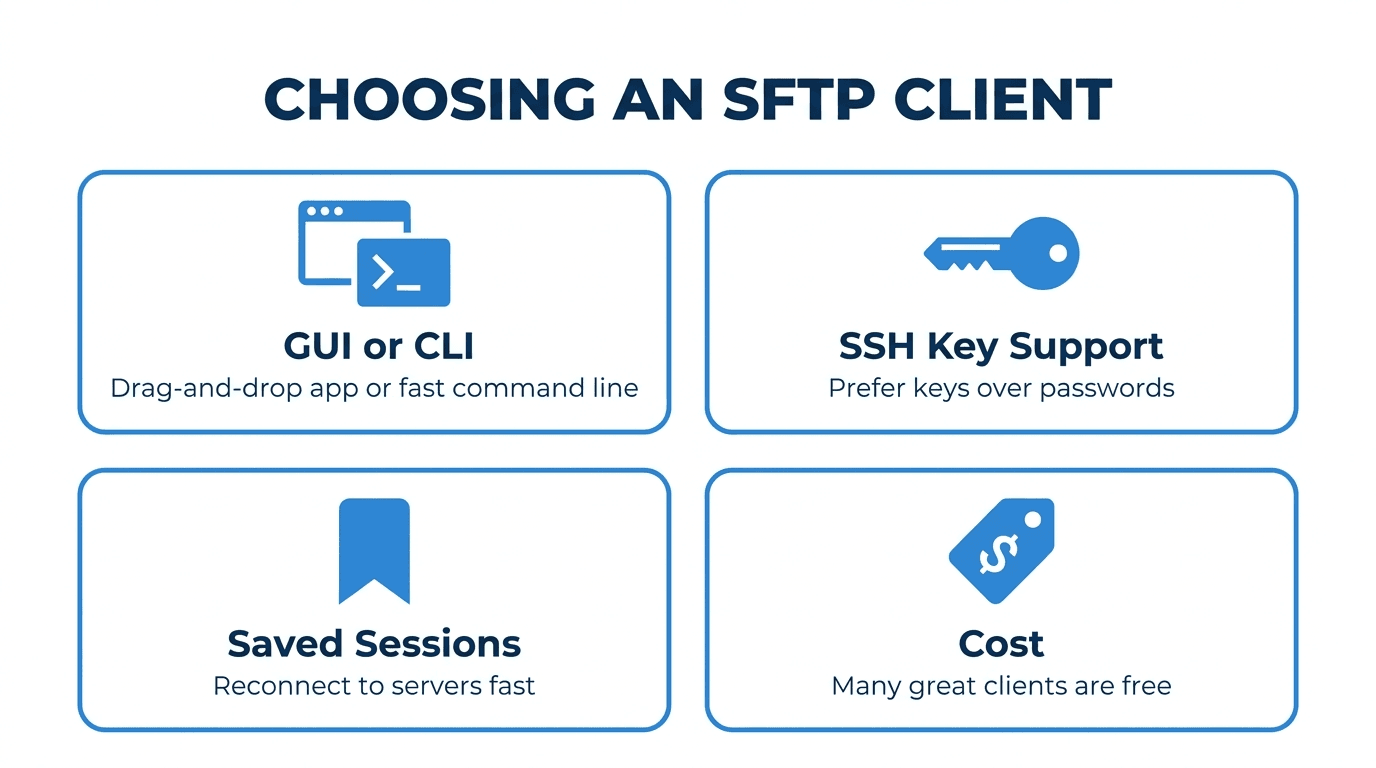
Before the list, the criteria that actually matter:
- GUI or command line. A graphical client is friendlier for occasional, manual transfers. The command line wins for speed, scripting, and remote servers.
- SSH key support. Any serious client supports key-based auth. If a tool only does passwords, skip it. See SSH Keys for SFTP.
- Bookmarks and saved sessions. If you connect to the same servers repeatedly, saved connections are a real time saver.
- Cost and licensing. Several excellent clients are free and open source. Some paid clients add polish and support.
- Extras. Built-in text editors, directory sync, queued transfers, and resume-on-failure separate the basic tools from the powerful ones.
Best SFTP clients for Windows
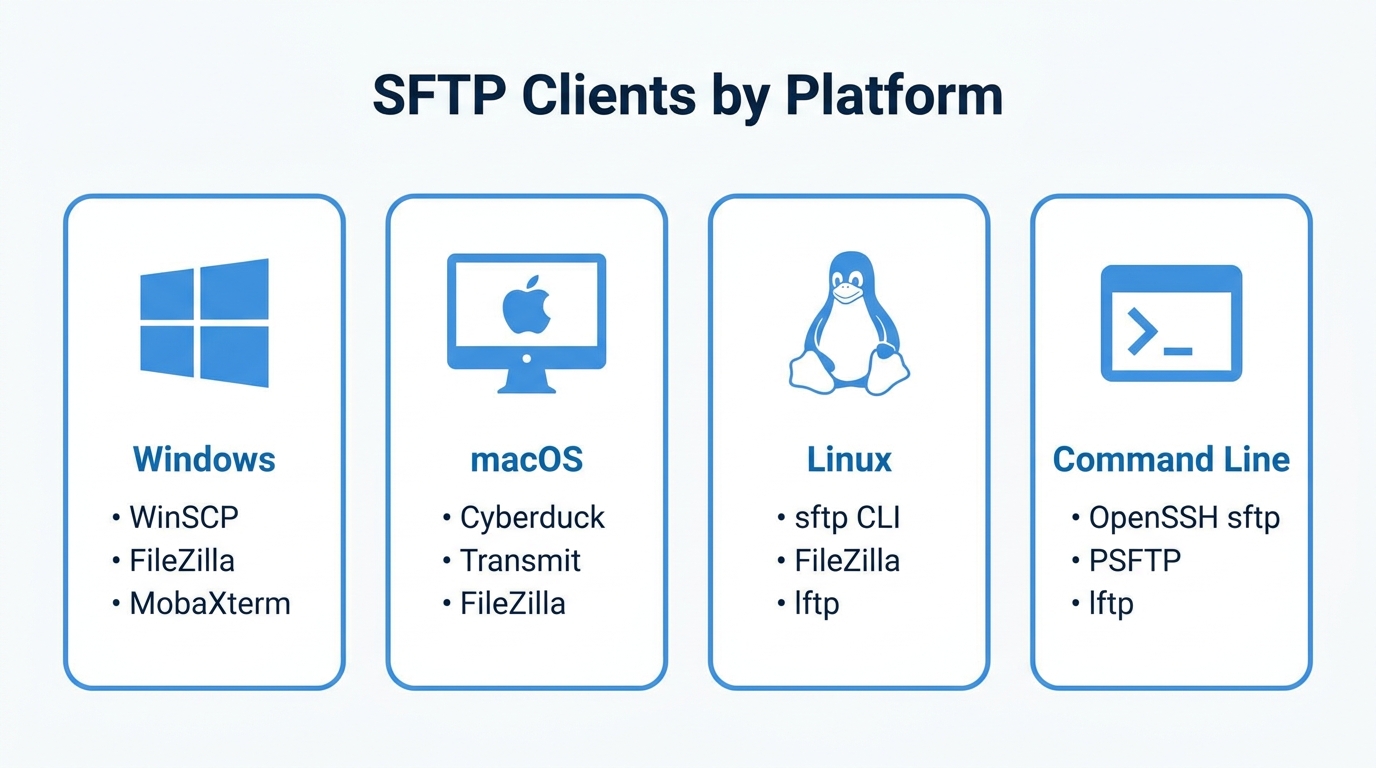
WinSCP is the default recommendation for Windows. It is free, open source, and purpose-built for SFTP and FTP. You get a two-pane file manager, saved sessions, SSH key support, scripting for automation, and integration with PuTTY. For most Windows users, this is the answer.
FileZilla is the other heavyweight. It is free, cross-platform, and built around a clear two-pane layout with a transfer queue that handles large batches well. Use it if you also work on Mac or Linux and want one consistent tool everywhere.
MobaXterm bundles SFTP into a broader terminal toolkit. If you already SSH into servers all day and want an integrated terminal, X server, and file browser in one window, it earns its place. The SFTP browser appears automatically alongside your SSH sessions.
PuTTY (PSFTP) is the minimal command-line option on Windows. psftp ships with the PuTTY suite and gives you a scriptable SFTP prompt without a GUI. Reach for it when you want lightweight automation on Windows.
Best SFTP clients for Mac
Cyberduck is the popular free choice on macOS (and Windows). It connects to SFTP plus a long list of cloud storage backends, has a clean interface, and integrates with the macOS Keychain for credentials. Good for users who also touch object storage.
Transmit is the polished paid option, Mac-only. It is fast, looks native, and adds features like directory sync and mounting remote servers as local drives. If you transfer files daily on a Mac and want the smoothest experience, it is worth the license.
FileZilla runs on macOS too, so if you want the same tool across every machine you own, it is a solid free pick here as well.
The built-in sftp command is already on your Mac. macOS ships OpenSSH, so you can open Terminal and run sftp user@host with zero installation. For quick transfers, nothing is faster to start.
Best SFTP clients for Linux
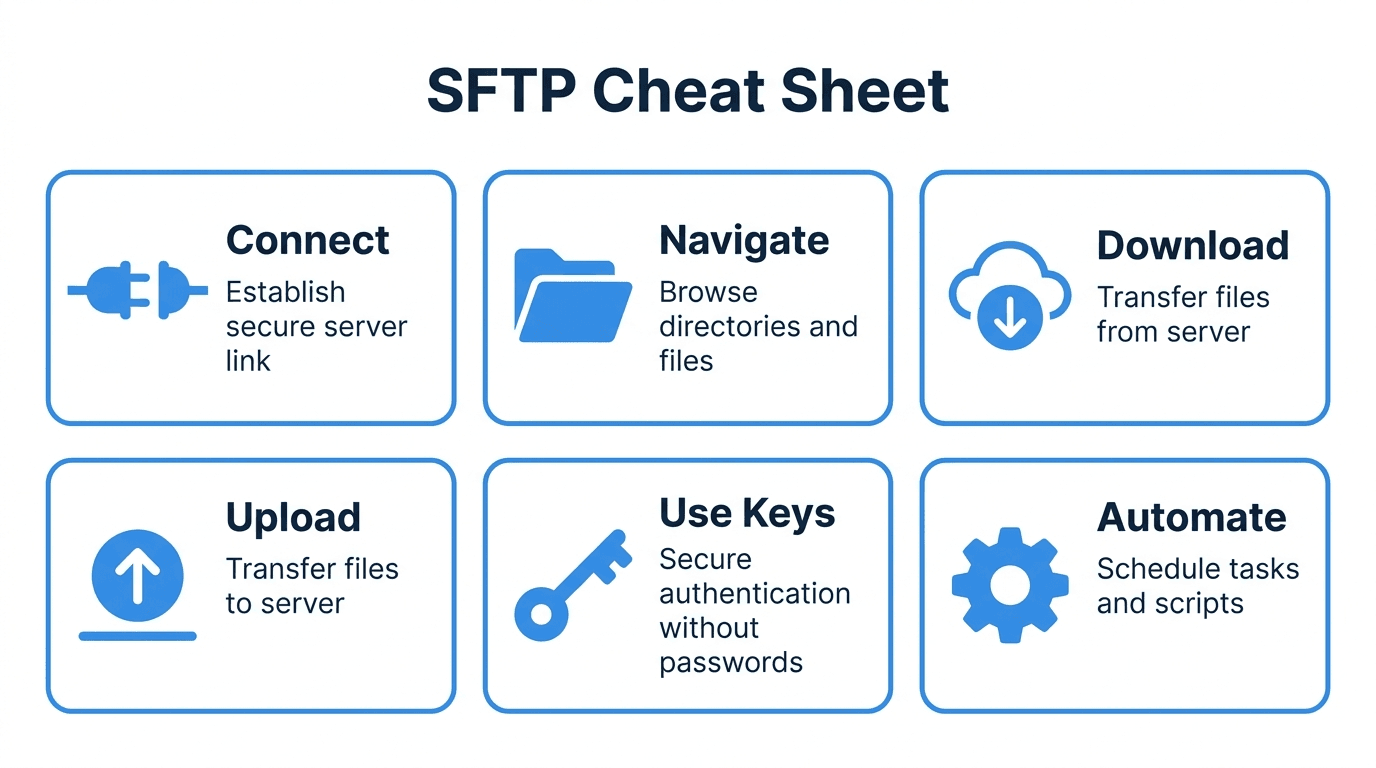
The command-line sftp client is the natural choice on Linux. It comes with OpenSSH, which is on virtually every distribution. It is scriptable, fast, and always available over SSH. If you only learn one tool, learn this one. Our SFTP Cheat Sheet covers the commands.
FileZilla provides the GUI experience on Linux for users who prefer drag and drop, with the same interface as its Windows and Mac builds.
GNOME Files (Nautilus) can connect to SFTP servers directly through "Connect to Server" using an sftp:// address, mounting the remote folder right in your file manager. KDE's Dolphin does the same. No extra software needed for casual browsing.
lftp is a powerful command-line client for people who want more than basic sftp: mirroring, parallel transfers, and robust scripting. It is a favorite for scheduled, repeatable jobs.
Connecting from code: Java, Python, and PowerShell
"SFTP client" sometimes means a library, not an app, because you want your own program to transfer files.
- Java. The common libraries are JSch and the more modern SSHJ. Both implement the SSH and SFTP protocols so your application can connect, upload, and download programmatically.
- Python. Paramiko is the standard. See How to Connect to an SFTP Server Using Python.
- PowerShell and .NET. The WinSCP .NET assembly is widely used to script transfers on Windows, and Posh-SSH is a popular PowerShell module.
For automation, a library or a scripted command-line client beats clicking through a GUI every time. See How to Automate SFTP File Transfers with Python.
Free vs paid: what you actually gain
Most people never need to pay. WinSCP, FileZilla, Cyberduck, and the command-line clients are free, capable, and well maintained. Paid clients like Transmit buy you polish, native feel, and conveniences like seamless remote-drive mounting. Pay when daily ergonomics matter to you, not because free tools are missing the essentials. They are not.
Common pitfalls
- Downloading FileZilla from the wrong site. Get it from the official project page. Bundled installers from mirror sites have historically included unwanted extras.
- Ignoring host key warnings. The first-connection fingerprint prompt is a security feature. Verify it once rather than clicking through blindly. See SFTP Security Best Practices.
- Sticking to passwords. Every client here supports SSH keys. Keys are more secure and easier to automate.
- Confusing SFTP with FTPS. They are different protocols. Make sure your client is set to SFTP (SSH), not FTP or FTPS. See SFTP vs FTPS.
How FilePulse fits
Whichever client you choose, it needs a server to connect to. FilePulse is that server: a managed cloud SFTP service that works with every client on this list, because it speaks standard SFTP. Point WinSCP, FileZilla, Cyberduck, or the plain sftp command at your FilePulse endpoint and it just works, with per-user access, IP allowlists, and audit logging handled for you.
Next step: create an endpoint and connect to it with your favorite client in minutes. Create a free FilePulse account.