If you have ever connected to an SFTP server with a username and password, you have used the simplest form of authentication. SSH keys offer a more secure alternative that eliminates the risks associated with passwords. This guide walks through everything you need to know to get started with SSH key authentication for SFTP.
What Are SSH Keys?
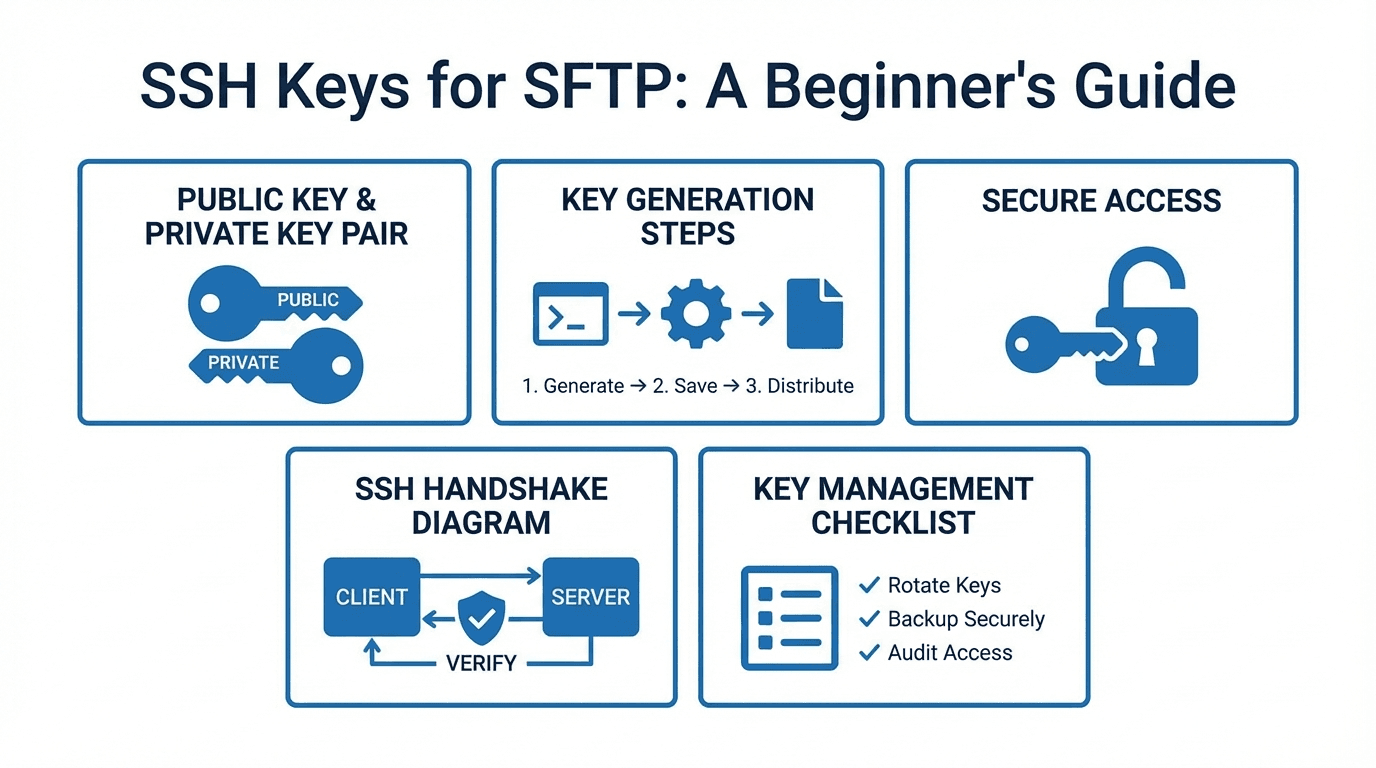
SSH keys are a pair of cryptographic keys used to authenticate a user to a server. The pair consists of:
- Private key: A secret file stored on your local machine. This key should never be shared with anyone.
- Public key: A file derived from the private key that is placed on the server. It can be shared freely without compromising security.
When you connect to an SFTP server, the server challenges your client to prove it holds the private key that corresponds to the public key on file. This happens through a mathematical verification process that never exposes the private key itself.
Why SSH Keys Are More Secure Than Passwords
Passwords have several weaknesses that SSH keys avoid:
- Brute-force attacks: Attackers can try thousands of password combinations per minute. SSH keys are cryptographically complex, making brute-force attacks infeasible.
- Phishing: Passwords can be tricked out of users through fake login pages. SSH keys cannot be phished because the private key is never transmitted.
- Reuse: Users often reuse passwords across services. A breach on one service can compromise others. SSH keys are unique per server or service.
- Interception: Even over encrypted connections, password-based authentication involves transmitting a shared secret. Key-based authentication proves identity without sending the private key.
Generating SSH Keys
The ssh-keygen command creates a new key pair. The two most common algorithms are Ed25519 and RSA.
Ed25519 (Recommended)
Ed25519 keys are shorter, faster, and considered more secure than RSA for most use cases:
ssh-keygen -t ed25519 -C "your-email@example.com"
This creates two files: ~/.ssh/id_ed25519 (private key) and ~/.ssh/id_ed25519.pub (public key).
RSA (Widely Compatible)
RSA keys are supported by virtually all SSH implementations. Use at least 4096 bits for adequate security:
ssh-keygen -t rsa -b 4096 -C "your-email@example.com"
This creates ~/.ssh/id_rsa and ~/.ssh/id_rsa.pub.
During key generation, you will be prompted for a passphrase. Adding a passphrase encrypts the private key on disk, providing protection if your machine is compromised.
Adding Your Public Key to the SFTP Server
Once your key pair is generated, the public key must be added to the SFTP server. The exact process depends on your server or provider:
- Manual setup: Copy the contents of your
.pubfile and add it to the~/.ssh/authorized_keysfile on the server. - Managed SFTP providers: Most providers, including FilePulse, offer a web interface or API where you can paste or upload your public key.
To view your public key, run:
cat ~/.ssh/id_ed25519.pub
Connecting with a Key
Once the public key is on the server, you can connect using your private key:
sftp -i ~/.ssh/id_ed25519 user@sftp.example.com
The -i flag specifies which private key to use. If your key is in the default location and has a standard name, many SFTP clients will find it automatically.
Key Management Best Practices
As you use SSH keys across more servers and services, managing them well becomes important:
- Use passphrases: Always protect your private key with a strong passphrase. Use an SSH agent (
ssh-agent) to avoid re-entering it for every connection. - Rotate keys periodically: Generate new key pairs on a regular schedule (for example, annually) and replace old public keys on your servers.
- Revoke compromised keys: If a private key may have been exposed, remove the corresponding public key from all servers immediately and generate a new pair.
- Use separate keys for separate purposes: Maintain different key pairs for personal use, CI/CD automation, and different organizations to limit the blast radius of a compromise.
- Set proper file permissions: Private keys should have
600permissions (readable only by the owner). The.sshdirectory should be700.
How FilePulse Supports SSH Key Authentication
FilePulse makes SSH key management straightforward. You can add public keys through the web dashboard, assign keys to specific users, and remove keys instantly when they are no longer needed. FilePulse supports both Ed25519 and RSA keys, and all key-based connections are fully logged in the audit trail.
Ready to move beyond passwords? Sign up for FilePulse and configure SSH key authentication in minutes, or contact our team for help getting started.