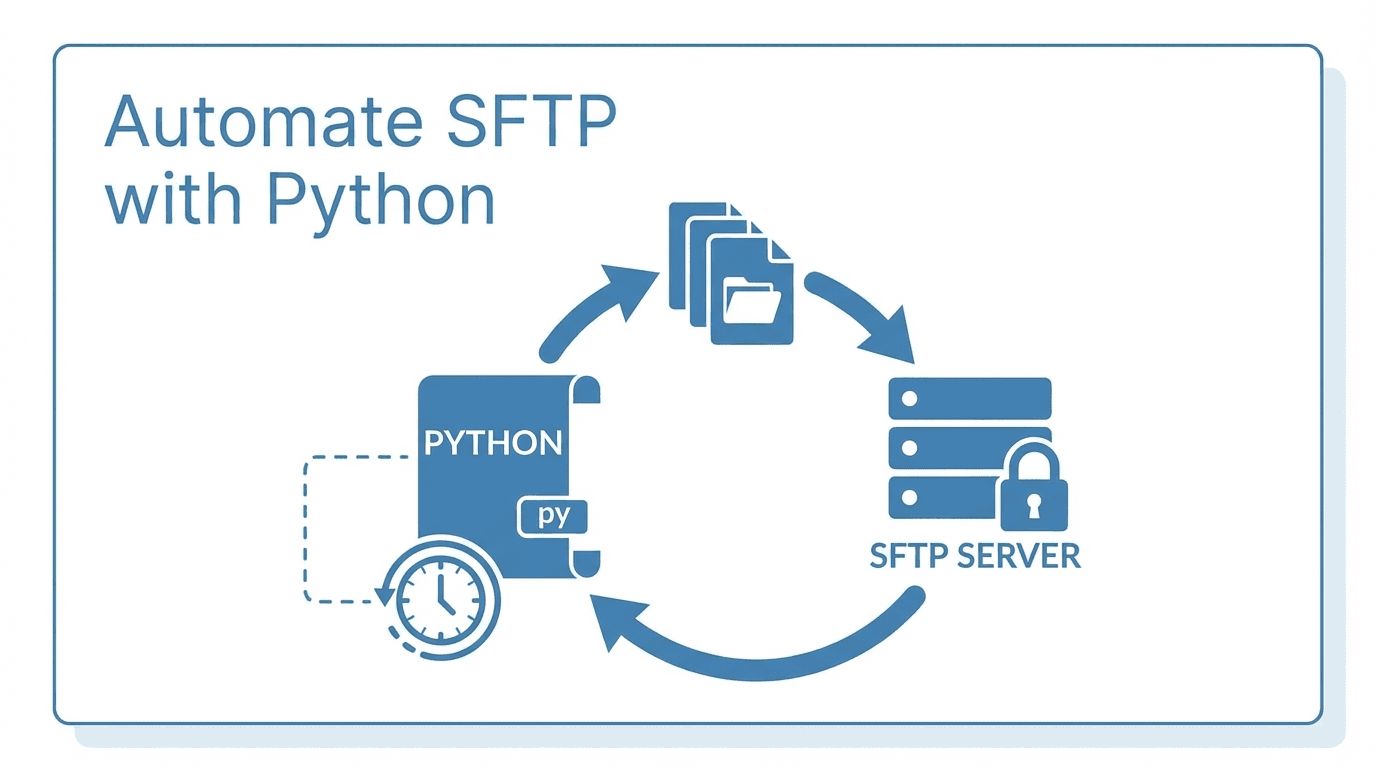
Manually transferring files over SFTP works fine when you are dealing with a handful of files. But once your workflow grows to dozens or hundreds of daily transfers, automation becomes essential. Python, combined with the Paramiko library, gives you a flexible and reliable way to script SFTP operations.
This guide walks you through everything from basic connections to production-ready automation with retry logic, error handling, and scheduling.
Prerequisites
Before you begin, make sure you have:
- Python 3.8+ installed on your system
- pip for installing packages
- Access credentials for your SFTP server (hostname, username, password or SSH key)
Install Paramiko with pip:
pip install paramiko
Connecting to an SFTP Server
The first step in any SFTP automation script is establishing a connection. Here is a basic example using password authentication:
import paramiko

def connect_sftp(hostname, username, password, port=22):
    transport = paramiko.Transport((hostname, port))
    transport.connect(username=username, password=password)
    sftp = paramiko.SFTPClient.from_transport(transport)
    return sftp, transport

sftp, transport = connect_sftp("sftp.example.com", "myuser", "mypassword")
For production environments, SSH key authentication is strongly recommended over passwords:
def connect_sftp_with_key(hostname, username, key_path, port=22):
    private_key = paramiko.RSAKey.from_private_key_file(key_path)
    transport = paramiko.Transport((hostname, port))
    transport.connect(username=username, pkey=private_key)
    sftp = paramiko.SFTPClient.from_transport(transport)
    return sftp, transport

sftp, transport = connect_sftp_with_key(
    "sftp.example.com",
    "myuser",
    "/home/myuser/.ssh/id_rsa"
)
Uploading and Downloading Files
Once connected, uploading and downloading files is straightforward:
# Upload a file
sftp.put("/local/path/report.csv", "/remote/path/report.csv")

# Download a file
sftp.get("/remote/path/data.csv", "/local/path/data.csv")
You can also list remote directory contents to discover files:
files = sftp.listdir("/remote/path/")
print(files)
Batch Processing Multiple Files
Real-world automation usually involves transferring multiple files at once. Here is a function that uploads all files from a local directory:
import os

def batch_upload(sftp, local_dir, remote_dir):
    for filename in os.listdir(local_dir):
        local_path = os.path.join(local_dir, filename)
        if os.path.isfile(local_path):
            remote_path = f"{remote_dir}/{filename}"
            sftp.put(local_path, remote_path)
            print(f"Uploaded: {filename}")

batch_upload(sftp, "/local/outbox/", "/remote/inbox/")
And a matching function to download all files from a remote directory:
def batch_download(sftp, remote_dir, local_dir):
    for filename in sftp.listdir(remote_dir):
        remote_path = f"{remote_dir}/{filename}"
        local_path = os.path.join(local_dir, filename)
        sftp.get(remote_path, local_path)
        print(f"Downloaded: {filename}")

batch_download(sftp, "/remote/outbox/", "/local/inbox/")
Error Handling and Retry Logic
Network connections are unreliable. Your automation scripts should handle failures gracefully and retry when appropriate:
import time

def upload_with_retry(sftp, local_path, remote_path, max_retries=3):
    for attempt in range(1, max_retries + 1):
        try:
            sftp.put(local_path, remote_path)
            print(f"Upload succeeded on attempt {attempt}")
            return True
        except (IOError, paramiko.SSHException) as e:
            print(f"Attempt {attempt} failed: {e}")
            if attempt < max_retries:
                wait_time = 2 ** attempt  # Exponential backoff
                print(f"Retrying in {wait_time} seconds...")
                time.sleep(wait_time)
    print("All retry attempts exhausted.")
    return False
Always wrap your entire script in a try/finally block to ensure connections are closed properly:
try:
    sftp, transport = connect_sftp("sftp.example.com", "myuser", "mypassword")
    upload_with_retry(sftp, "/local/report.csv", "/remote/report.csv")
finally:
    sftp.close()
    transport.close()
Scheduling with Cron
Once your script works reliably, schedule it to run automatically using cron (Linux/macOS) or Task Scheduler (Windows).
To run your script every day at 2:00 AM, add this line to your crontab:
crontab -e
0 2 * * * /usr/bin/python3 /home/myuser/scripts/sftp_transfer.py >> /var/log/sftp_transfer.log 2>&1
This runs the script daily and logs output for debugging purposes.
Security Best Practices
When automating SFTP transfers, security should not be an afterthought:
- Use SSH key authentication instead of passwords. Keys are harder to brute-force and can be rotated without changing server configuration.
- Verify host keys to prevent man-in-the-middle attacks. Avoid using
AutoAddPolicyin production. Instead, load known hosts:
ssh = paramiko.SSHClient()
ssh.load_host_keys("/home/myuser/.ssh/known_hosts")
- Restrict file permissions on your private keys:
chmod 600 ~/.ssh/id_rsa - Store credentials securely using environment variables or a secrets manager, never hard-coded in scripts.
- Use a dedicated service account with minimal permissions for automated transfers.
- Enable logging so you can audit what was transferred and when.
Putting It All Together
Here is a complete, production-ready script that combines everything:
import os
import time
import logging
import paramiko

logging.basicConfig(level=logging.INFO)
logger = logging.getLogger(__name__)

def connect(hostname, username, key_path, port=22):
    key = paramiko.RSAKey.from_private_key_file(key_path)
    transport = paramiko.Transport((hostname, port))
    transport.connect(username=username, pkey=key)
    return paramiko.SFTPClient.from_transport(transport), transport

def transfer_files(sftp, local_dir, remote_dir, max_retries=3):
    for filename in os.listdir(local_dir):
        local_path = os.path.join(local_dir, filename)
        if not os.path.isfile(local_path):
            continue
        remote_path = f"{remote_dir}/{filename}"
        for attempt in range(1, max_retries + 1):
            try:
                sftp.put(local_path, remote_path)
                logger.info(f"Uploaded {filename}")
                break
            except Exception as e:
                logger.warning(f"Attempt {attempt} failed for {filename}: {e}")
                if attempt < max_retries:
                    time.sleep(2 ** attempt)
        else:
            logger.error(f"Failed to upload {filename} after {max_retries} attempts")

def main():
    sftp, transport = None, None
    try:
        sftp, transport = connect(
            hostname=os.environ["SFTP_HOST"],
            username=os.environ["SFTP_USER"],
            key_path=os.environ["SFTP_KEY_PATH"],
        )
        transfer_files(sftp, "/data/outbox", "/uploads")
    finally:
        if sftp:
            sftp.close()
        if transport:
            transport.close()

if __name__ == "__main__":
    main()
When to Consider a Managed Solution
Python scripts work well for simple workflows, but they come with maintenance overhead. You need to handle monitoring, alerting, user management, and compliance yourself. As your file transfer needs grow, a managed platform like FilePulse can save significant engineering time by providing built-in automation, audit logging, and partner onboarding out of the box.
Ready to simplify your SFTP automation? Start a free trial of FilePulse or get in touch with our team to learn more.