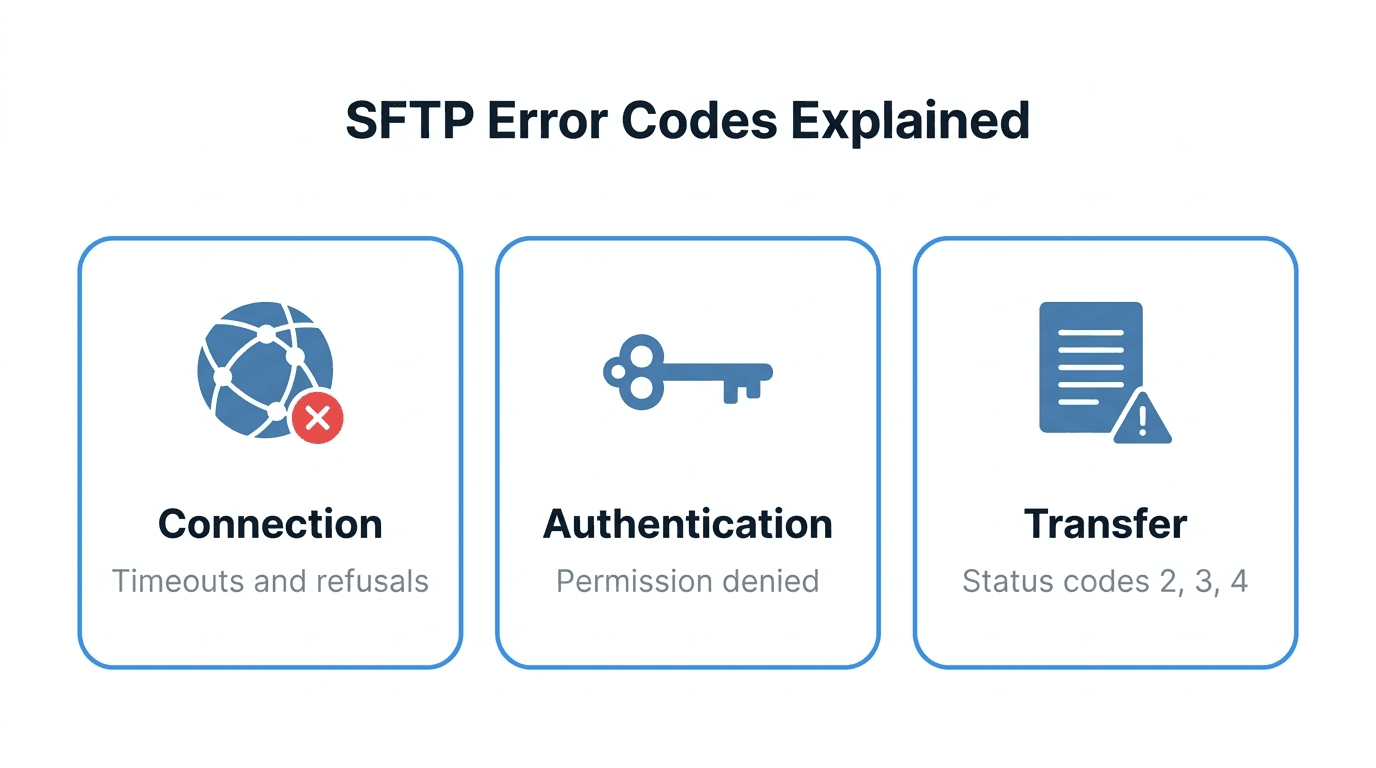
SFTP failures surface at three different layers: the network connection, SSH authentication, and the SFTP protocol itself. Each layer produces its own error messages, and the fix depends entirely on which layer failed. A "permission denied" during login is an authentication problem. A "permission denied" during an upload is a filesystem problem. The words are the same, the causes are unrelated.
This post is a reference for mapping error messages to the correct layer and resolving them. It covers the most common connection, authentication, and transfer errors, the SFTP status codes behind them, and a debugging workflow that isolates the cause in a few minutes.
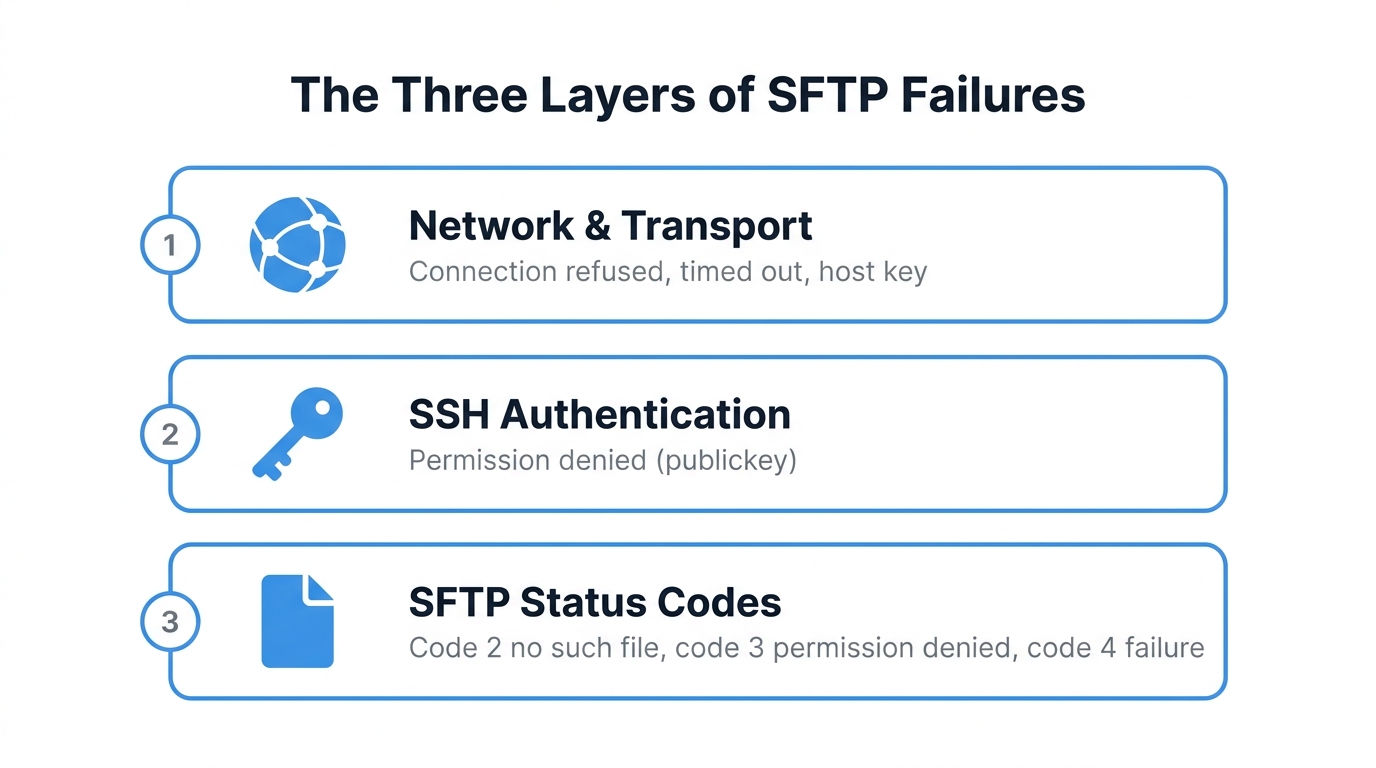
Where SFTP errors come from
SFTP runs as a subsystem on top of SSH. That layering explains why error messages look so different from each other:
- Network and transport errors come from TCP or the SSH transport layer. Examples: "Connection refused", "Connection timed out", "Host key verification failed". These occur before any file operation is attempted.
- Authentication errors come from the SSH authentication layer. The most common is "Permission denied (publickey,password)". At this point the network path works, but the server rejected your credentials.
- SFTP status codes come from the SFTP protocol itself. Once you are connected and authenticated, every file operation returns a numeric status code. Code 3 means permission denied on the file, code 2 means the file does not exist, and so on.
The first step in any SFTP investigation is deciding which layer produced the error. Everything after that follows naturally. If you need a refresher on the protocol itself, see what SFTP is and how it works.
Connection-layer failures
These errors appear before authentication starts.
Connection refused
ssh: connect to host sftp.example.com port 22: Connection refused
The TCP connection reached the host, but nothing is listening on that port. Check that the SFTP service is running and that you are using the right port. Some servers run SFTP on a non-standard port such as 2222:
sftp -P 2222 user@sftp.example.com
Connection timed out
ssh: connect to host sftp.example.com port 22: Operation timed out
Packets are being dropped, usually by a firewall. Verify the hostname resolves to the address you expect, then check firewalls on both sides. If the server uses IP allowlisting, confirm your current egress IP is on the list. This is a frequent cause when a client's office IP changes or a job moves to a new cloud environment. See IP allowlists for SFTP security for how these rules are typically configured.
Host key verification failed
@@@@@@@@@@@@@@@@@@@@@@@@@@@@@@@@@@@@@@@@@@@@@@@@@@@@@@@@@@@
@    WARNING: REMOTE HOST IDENTIFICATION HAS CHANGED!     @
@@@@@@@@@@@@@@@@@@@@@@@@@@@@@@@@@@@@@@@@@@@@@@@@@@@@@@@@@@@
The server presented a different host key than the one stored in your known_hosts file. This happens legitimately after a server migration or rebuild, but it is also what a man-in-the-middle attack looks like. Do not blindly delete the old key. Confirm with the server operator that the key actually changed, then remove the stale entry:
ssh-keygen -R sftp.example.com
Received message too long
Received message too long 1416128883
This one confuses everyone the first time. It means the server sent output before the SFTP protocol started, usually because a login script (.bashrc, .profile) on the server prints text such as a welcome banner. SFTP tries to interpret that text as protocol data and fails. The fix is server-side: ensure nothing writes to stdout for non-interactive sessions.
Authentication failures
Permission denied (publickey)
user@sftp.example.com: Permission denied (publickey).
The server only accepts public key authentication and rejected your key. Work through these in order:
- Wrong key offered - Specify the key explicitly with
sftp -i ~/.ssh/partner_key user@host. - Public key not installed - The corresponding public key must be registered on the server (in
authorized_keyson a traditional server, or in the user's profile on a managed platform). - Wrong username - Key auth fails silently on a username typo because the server looks up keys per user.
If you are new to key-based login, the SSH keys for SFTP beginners guide walks through generating and installing keys correctly.
Unprotected private key file
Permissions 0644 for '/home/user/.ssh/id_ed25519' are too open.
OpenSSH refuses to use a private key that other users on the machine can read. Fix the permissions:
chmod 600 ~/.ssh/id_ed25519
Invalid key format
Load key "partner.ppk": invalid format
OpenSSH cannot read PuTTY's .ppk format. Convert it to OpenSSH format with puttygen partner.ppk -O private-openssh -o partner_key, or export it from the PuTTY key generator. The differences between authentication methods, including when passwords are still acceptable, are covered in SFTP authentication methods explained.
Transfer-layer failures: SFTP status codes
Once connected, every SFTP operation returns a status code defined by the SFTP protocol drafts. These are the codes you will see in logs and client error messages:
| Code | Name | Typical cause | | --- | --- | --- | | 0 | OK | Success | | 1 | EOF | End of file reached (normal during reads) | | 2 | No such file | Wrong path, file already moved or deleted | | 3 | Permission denied | Filesystem or virtual folder permissions | | 4 | Failure | Generic error: disk full, quota exceeded, file locked | | 5 | Bad message | Client and server disagree on protocol format | | 6 | No connection | Client not connected | | 7 | Connection lost | Network dropped mid-transfer | | 8 | Operation unsupported | Server does not implement the request |
Three of these deserve extra attention:
- Code 2 (no such file) - Often caused by a client assuming the wrong working directory. SFTP sessions start in the user's home or chroot directory, and relative paths resolve from there. Print the current directory with
pwdin an interactive session before assuming the file is missing. - Code 3 (permission denied) - You are authenticated, but the user does not have rights on that specific file or folder. On managed platforms this usually means a folder permission or read-only share; on Linux servers, check ownership and mode bits on the directory as well as the file.
- Code 4 (failure) - The catch-all. Disk full and quota exceeded are the usual suspects, followed by attempting to overwrite a file another process holds open. Server logs are the only reliable way to disambiguate a code 4.
A repeatable debugging workflow
Instead of guessing, run through these steps in order. Each one either finds the problem or eliminates a layer.
Step 1: Reproduce with verbose output.
sftp -vvv user@sftp.example.com
The -vvv flags print the full SSH negotiation. Read from the top: connection established, host key accepted, authentication methods attempted, which key was offered, and where the process stopped. Nine times out of ten this output alone identifies the layer.
Step 2: Test the network path independently.
nc -vz sftp.example.com 22
If this fails, the problem is DNS, routing, or a firewall, and no SSH configuration change will help.
Step 3: Check what the server saw. Client errors tell you that something failed; server logs tell you why. On a Linux server, check journalctl -u ssh or /var/log/auth.log. On a managed platform, check the activity or audit log. A client-side "code 4" frequently corresponds to a precise server-side message such as "quota exceeded".
Step 4: Isolate the operation. If login works but a transfer fails, test the smallest possible operation: ls the target directory, then put a one-byte file. This separates path problems (code 2) from permission problems (code 3) from resource problems (code 4).
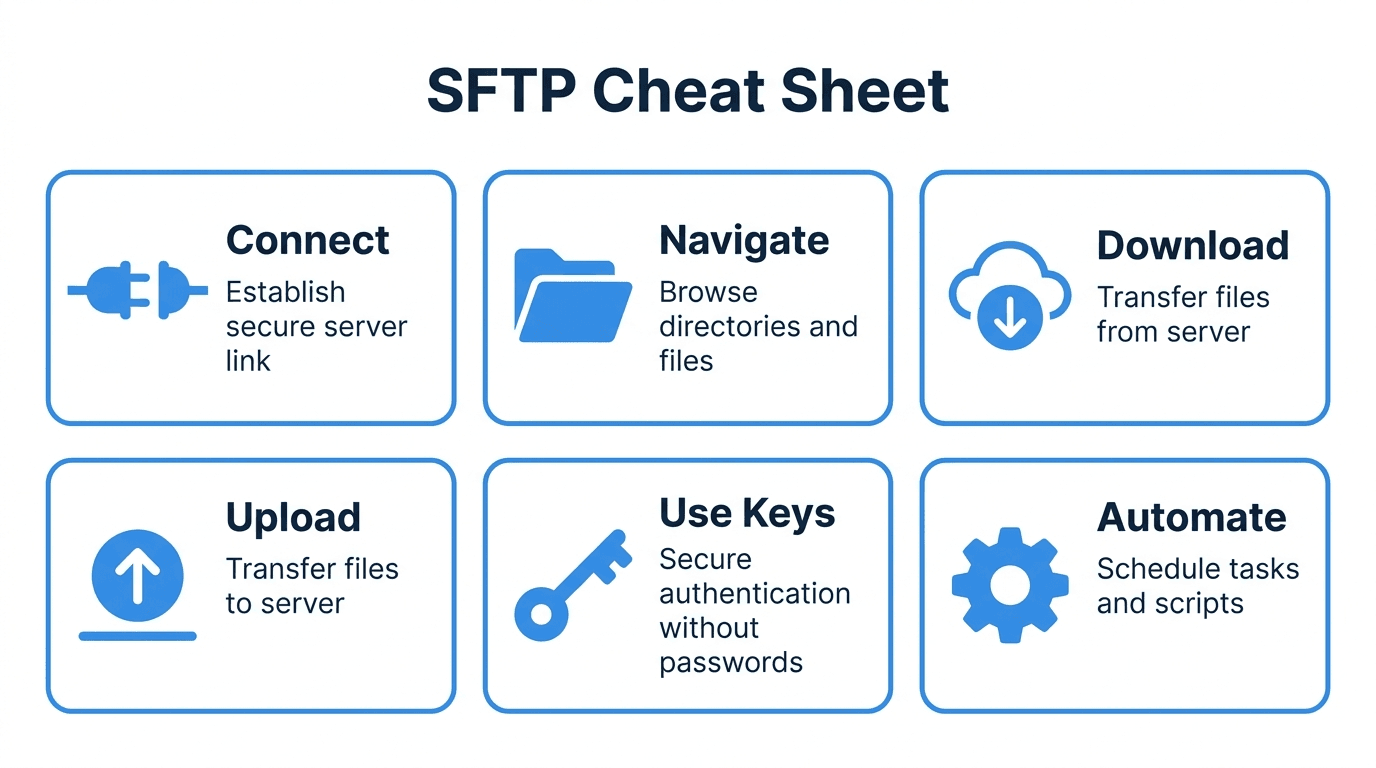
For a quick reference of the client commands used above, keep the SFTP cheat sheet nearby.
Common pitfalls
- Fixing the wrong layer - Regenerating SSH keys will never fix a "Connection timed out". Identify the layer first.
- Deleting known_hosts entries without verifying - A changed host key is occasionally an attack. Confirm out of band before trusting the new key.
- Assuming paths are absolute - Chrooted and virtual filesystem environments remap paths. What the client sees as
/is rarely the server's real root. - Ignoring intermittent code 7 errors - Repeated "connection lost" failures on large files usually point to an idle timeout on a NAT gateway or load balancer, not a flaky server.
- Debugging in production scripts only - Automated jobs often swallow stderr. Reproduce interactively with
-vvvbefore changing the script.
How FilePulse fits
Most of the workflow above assumes you can read server-side logs, which is exactly what is missing when the failing server is a black box. FilePulse gives you a per-user activity log for every connection attempt, authentication failure, and file operation, so a partner reporting "it doesn't work" can be diagnosed from the dashboard instead of from guesswork. Credentials, IP allowlists, and folder permissions are all visible in one place, which removes the most common sources of code 3 surprises.
Next step: If you spend more time debugging your SFTP server than using it, create a free FilePulse account and get a managed endpoint with full visibility into every session.