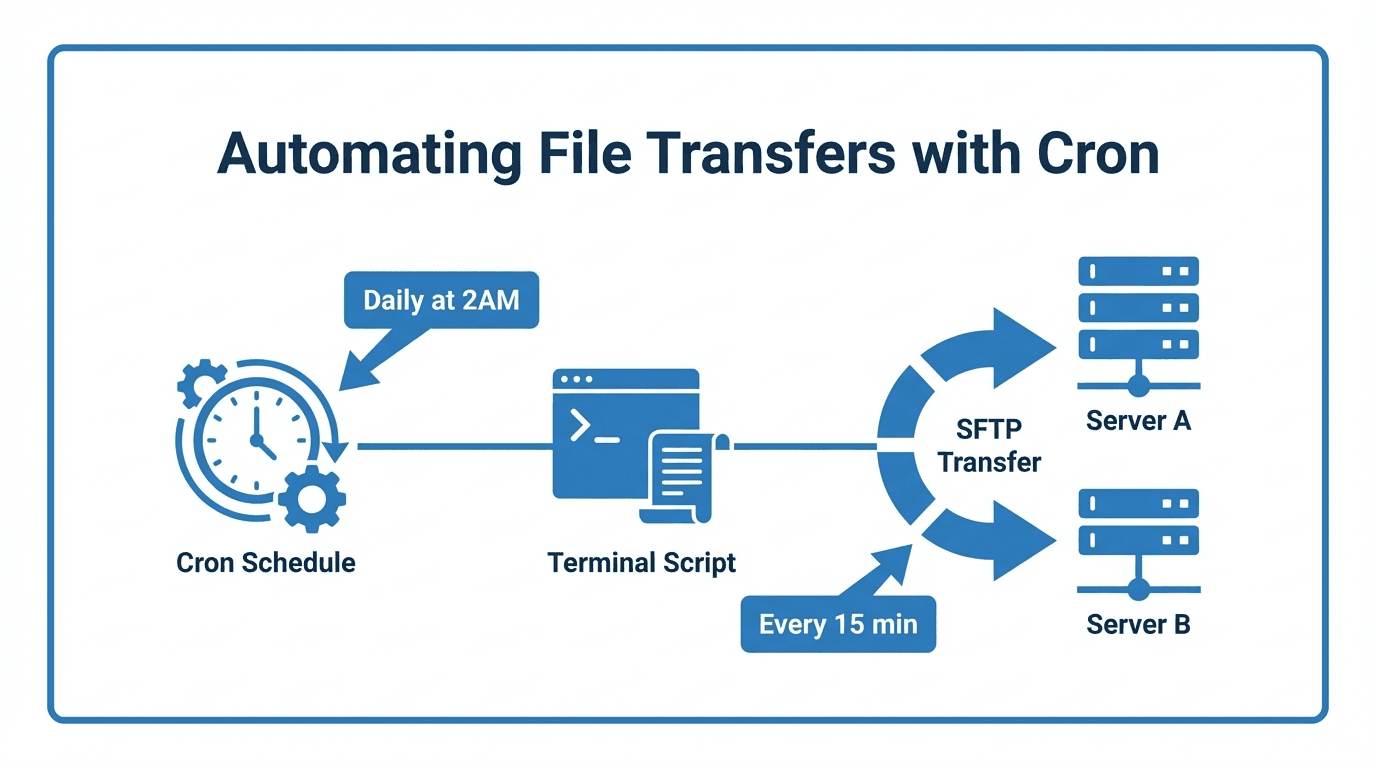
Cron is the standard job scheduler on Unix and Linux systems. Combined with SFTP command-line tools, it provides a straightforward way to automate recurring file transfers. This guide walks through the setup process, common patterns, and the limitations you should be aware of.
What Is Cron?
Cron is a time-based job scheduler built into most Unix-like operating systems. It runs tasks (called cron jobs) at specified intervals, such as every hour, every day at midnight, or on the first Monday of each month.
Cron jobs are defined in a file called the crontab. Each line specifies a schedule and a command to execute:
# Minute  Hour  Day  Month  Weekday  Command
  30      2     *    *      *        /opt/scripts/upload-reports.sh
This example runs the script /opt/scripts/upload-reports.sh every day at 2:30 AM.
Setting Up SSH Keys for Unattended Transfers
Automated transfers cannot prompt for a password, so you need SSH key authentication. Generate a dedicated key pair for the automation account:
ssh-keygen -t ed25519 -f /opt/scripts/.ssh/sftp_key -N ""
The -N "" flag creates the key without a passphrase, which is necessary for unattended operation. Upload the public key (sftp_key.pub) to your SFTP server and associate it with the appropriate user account.
Security note: Protect the private key file with strict permissions:
chmod 600 /opt/scripts/.ssh/sftp_key
Writing an SFTP Transfer Script
Here is a basic script that uploads files from a local directory to a remote SFTP server:
#!/bin/bash

SFTP_HOST="sftp.example.com"
SFTP_USER="automation"
SFTP_KEY="/opt/scripts/.ssh/sftp_key"
LOCAL_DIR="/data/outbound/"
REMOTE_DIR="/uploads/"

sftp -i "$SFTP_KEY" -b - "$SFTP_USER@$SFTP_HOST" <<EOF
cd $REMOTE_DIR
put $LOCAL_DIR*.csv
EOF
For downloading files, replace put with get and swap the directory references.
Common Scheduling Patterns
Edit your crontab with crontab -e and add entries for your use case:
# Upload daily reports at 6:00 AM
0 6 * * * /opt/scripts/upload-reports.sh

# Download partner files every 4 hours
0 */4 * * * /opt/scripts/download-partner-files.sh

# Weekly archive transfer on Sunday at midnight
0 0 * * 0 /opt/scripts/weekly-archive.sh
Error Handling and Logging
A production-quality script should capture errors and log results:
#!/bin/bash

LOG="/var/log/sftp-transfer.log"
TIMESTAMP=$(date '+%Y-%m-%d %H:%M:%S')

sftp -i "$SFTP_KEY" -b - "$SFTP_USER@$SFTP_HOST" <<EOF >> "$LOG" 2>&1
cd /uploads/
put /data/outbound/*.csv
EOF

if [ $? -eq 0 ]; then
  echo "$TIMESTAMP: Transfer succeeded" >> "$LOG"
else
  echo "$TIMESTAMP: Transfer FAILED" >> "$LOG"
  # Send alert (email, Slack webhook, etc.)
fi
Key practices:
- Always redirect stdout and stderr to a log file
- Check the exit code of the sftp command
- Send alerts on failure so issues are caught quickly
- Rotate log files to prevent disk space issues
Limitations of Cron-Based Approaches
While cron and SFTP scripts work well for simple scenarios, they have significant drawbacks as your needs grow:
- No retry logic by default. If a transfer fails, cron will not automatically retry. You must build retry logic into your scripts.
- No centralized monitoring. Each server manages its own cron jobs independently. Tracking transfer status across multiple servers requires custom tooling.
- Limited error visibility. Failures are logged locally, and without proactive alerting you may not notice problems for hours or days.
- No user management. Cron scripts run as a system user. Managing access for multiple partners or clients requires manual SSH key distribution and directory management.
- Difficult to scale. Adding new transfer workflows means writing new scripts, updating crontabs, and maintaining more code.
- No audit trail. Compliance teams often need detailed records of who transferred what and when. Cron logs are not designed for audit purposes.
When to Consider Managed MFT
If you find yourself maintaining dozens of cron-based transfer scripts, building custom monitoring, or struggling with partner onboarding, it is time to consider a managed file transfer platform.
FilePulse replaces cron-based scripts with a managed SFTP server that includes user management, storage backend configuration, monitoring, and audit logging out of the box.
Ready to move beyond cron scripts? Try FilePulse free and automate your file transfers with a managed platform. Need advice on migrating? Contact our team.