SFTP (SSH File Transfer Protocol) is the standard for secure file transfers. Unlike FTP, which sends data in plaintext, SFTP encrypts both credentials and file contents using the SSH protocol. Whether you are setting up file exchange with partners, automating data pipelines, or replacing a legacy FTP server, SFTP is the right choice.
This guide covers two approaches: setting up a self-hosted SFTP server using OpenSSH, and using a managed SFTP service like FilePulse. We will also cover testing your connection and security hardening tips.
What Is SFTP?
SFTP runs over SSH (Secure Shell) on port 22 by default. It provides:
- Encrypted data transfer. All data, including credentials, is encrypted in transit.
- Strong authentication. Supports both password and SSH key authentication.
- Firewall-friendly design. Uses a single port (unlike FTP, which requires multiple ports for data channels).
- File management operations. Beyond transfers, SFTP supports listing directories, creating folders, setting permissions, and deleting files.
SFTP is not the same as FTPS (FTP over TLS). While both provide encryption, they use different protocols and ports. SFTP is generally simpler to configure and more firewall-friendly.
Choosing Between Self-Hosted and Managed
Before setting up your SFTP server, decide which approach fits your needs:
Self-hosted means you install and maintain SFTP server software on your own infrastructure (a VM, bare metal server, or container). You have full control over configuration, but you are also responsible for security patches, uptime, user management, and monitoring.
Managed SFTP means a provider handles the server infrastructure for you. You get an SFTP endpoint, user management tools, and integrations without maintaining the underlying server. This approach saves time and reduces operational burden, especially as your number of partners grows.
Choose self-hosted if you need maximum control over the server environment or have regulatory requirements that mandate on-premises infrastructure. Choose managed if you want to minimize operational overhead and focus on your core business.
Self-Hosted Setup with OpenSSH
OpenSSH is the most widely used SSH and SFTP server implementation. It is included in most Linux distributions and available for macOS and Windows.
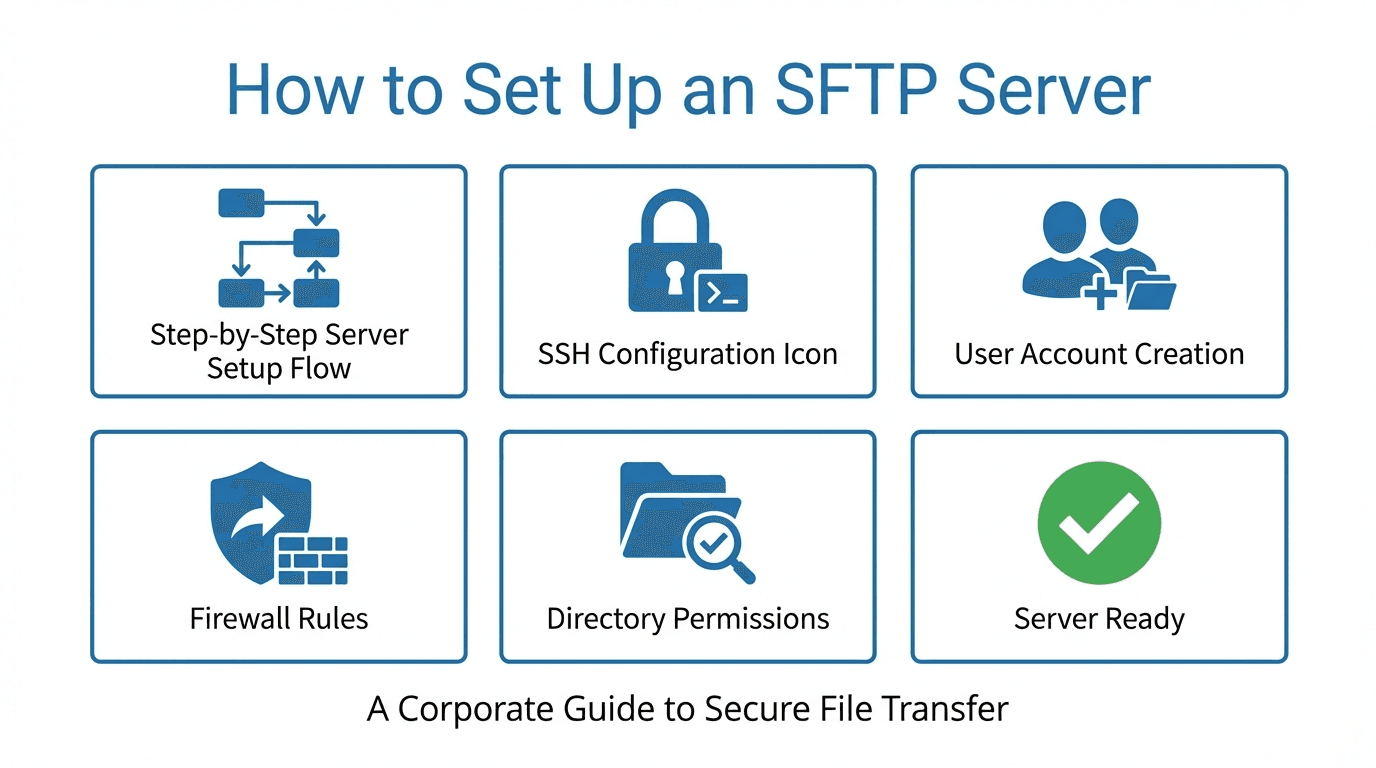
Step 1: Install OpenSSH Server
On Ubuntu or Debian:
sudo apt update
sudo apt install openssh-server
On CentOS or RHEL:
sudo yum install openssh-server
sudo systemctl start sshd
sudo systemctl enable sshd
On macOS, OpenSSH is pre-installed. Enable Remote Login in System Preferences > Sharing.
Step 2: Configure sshd_config
The main configuration file is /etc/ssh/sshd_config. Open it with your preferred editor:
sudo nano /etc/ssh/sshd_config
Key settings to configure:
# Use SFTP subsystem
Subsystem sftp internal-sftp

# Restrict SFTP users to their home directory
Match Group sftpusers
    ChrootDirectory /home/%u
    ForceCommand internal-sftp
    AllowTcpForwarding no
    X11Forwarding no
The ChrootDirectory directive restricts users to their home directory, preventing them from browsing the rest of the filesystem. The ForceCommand internal-sftp setting ensures these users can only use SFTP, not SSH shell access.
Step 3: Create SFTP Users
Create a group for SFTP users and add a new user:
# Create the SFTP group
sudo groupadd sftpusers

# Create a new user
sudo useradd -m -g sftpusers -s /usr/sbin/nologin sftpuser1

# Set a password
sudo passwd sftpuser1
The -s /usr/sbin/nologin flag prevents the user from logging in with a regular shell.
Step 4: Set Directory Permissions
For chroot to work correctly, the directory ownership and permissions must be set properly:
# The chroot directory must be owned by root
sudo chown root:root /home/sftpuser1
sudo chmod 755 /home/sftpuser1

# Create a writable subdirectory for the user
sudo mkdir /home/sftpuser1/files
sudo chown sftpuser1:sftpusers /home/sftpuser1/files
The chroot directory itself must be owned by root. The user writes to a subdirectory within it.
Step 5: Restart SSH and Test
Apply your configuration changes:
sudo systemctl restart sshd
Test the connection from another machine:
sftp sftpuser1@your-server-ip
Managed Setup with FilePulse
Setting up managed SFTP with FilePulse takes minutes instead of hours. Here is the process:
Step 1: Sign Up
Create an account at app.filepulse.io/auth/register. You can start with a free trial to evaluate the platform.
Step 2: Connect Your Storage
In the FilePulse dashboard, connect your cloud storage backend. FilePulse supports Amazon S3, Azure Blob Storage, Google Cloud Storage, and other providers. This is where your transferred files will be stored.
Step 3: Add Users and Partners
Create user accounts for your team and partner accounts for external organizations. For each partner, you can configure:
- SFTP credentials (password or SSH key)
- Allowed source directories
- Storage destination for uploaded files
- IP allowlist restrictions
Step 4: Share Connection Details
Provide your partners with the SFTP hostname, port, and their credentials. They can connect using any standard SFTP client.
That is it. FilePulse handles server infrastructure, availability, patching, monitoring, and audit logging behind the scenes.
Testing Your Connection
Regardless of which approach you chose, verify your SFTP server works correctly.
Using the command-line SFTP client:
sftp username@hostname
Once connected, test basic operations:
# List remote files
ls

# Upload a test file
put testfile.txt

# Download a file
get remotefile.txt

# Exit
bye
Using a graphical client like FileZilla, WinSCP, or Cyberduck:
- Enter the hostname, port (22), username, and password or key file
- Click Connect
- Verify you can browse directories and transfer files
Security Hardening Tips
Whether self-hosted or managed, follow these best practices to keep your SFTP server secure:
Use SSH key authentication. Disable password authentication when possible. Keys are significantly more resistant to brute-force attacks.
# In sshd_config
PasswordAuthentication no
PubkeyAuthentication yes
Disable root login over SSH.
PermitRootLogin no
Use a non-standard port. While security through obscurity is not a real defense, changing the SSH port from 22 reduces automated scanning noise:
Port 2222
Limit login attempts. Use tools like fail2ban to automatically block IP addresses after repeated failed login attempts:
sudo apt install fail2ban
Keep software updated. Apply security patches promptly for OpenSSH and your operating system.
Enable audit logging. Log all SFTP operations for troubleshooting and compliance:
# In sshd_config
LogLevel VERBOSE
Restrict network access. Use firewall rules to limit SFTP access to known IP addresses or ranges.
Set up monitoring. Monitor your SFTP server for unusual activity, failed login attempts, and resource usage.
Next Steps
You now have a working SFTP server. Depending on your needs, you might want to explore:
- Automating file transfers with Python scripts
- Setting up file routing and processing workflows
- Onboarding additional partners
- Configuring retention policies for transferred files
For a managed solution that handles all of this out of the box, sign up for FilePulse or contact our team to discuss your requirements.