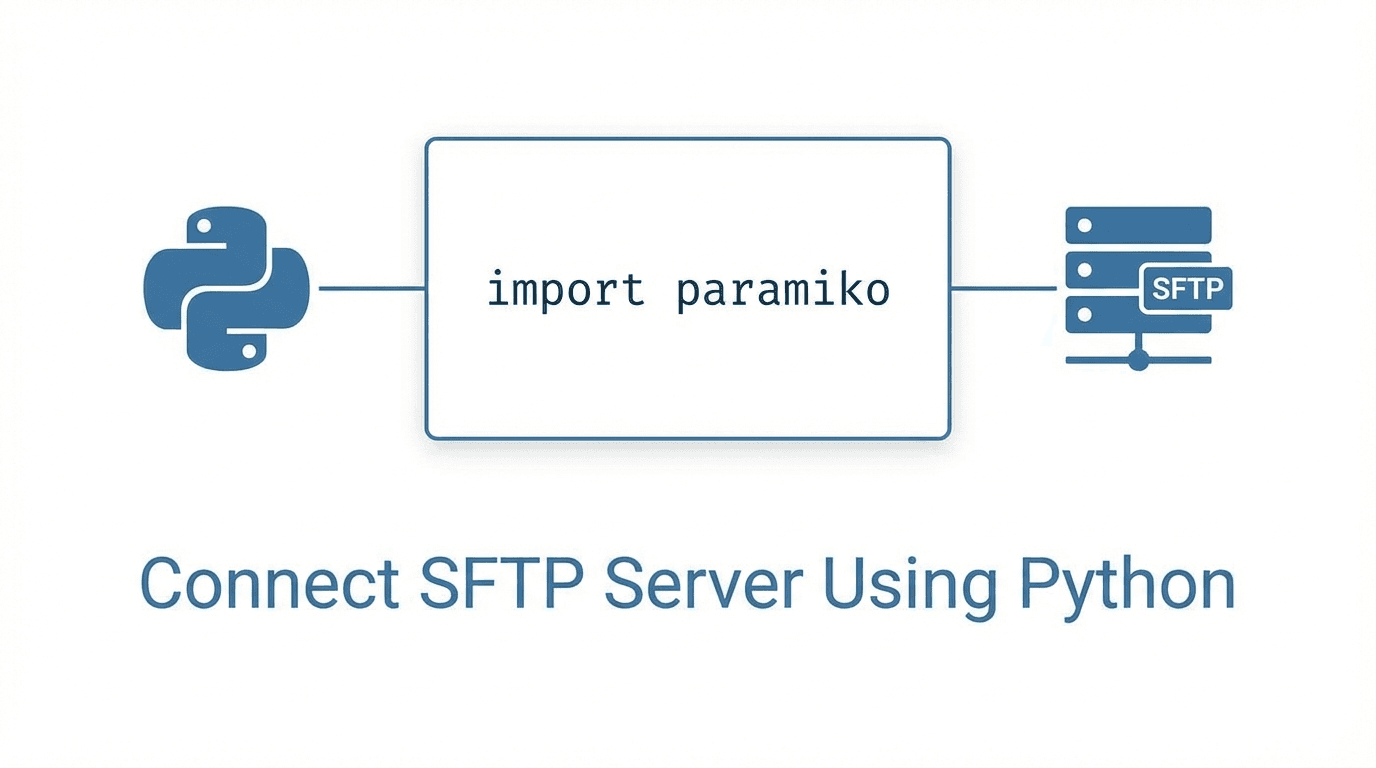
Python makes it straightforward to connect to SFTP servers programmatically. The Paramiko library is the standard choice for SSH and SFTP operations in Python. This guide covers the essentials: installing Paramiko, connecting with password authentication, and connecting with SSH key authentication.
Prerequisites
Before you start, make sure you have:
- Python 3.8 or later installed on your machine
- pip available for installing packages
- Access to an SFTP server with valid credentials (hostname, port, username, and either a password or SSH private key)
Installing Paramiko
Paramiko is available on PyPI. Install it with pip:
pip install paramiko
If you are using a virtual environment (recommended), activate it first:
python -m venv venv
source venv/bin/activate  # On macOS/Linux
pip install paramiko
You can verify the installation by importing it in a Python shell:
import paramiko
print(paramiko.__version__)
Connecting with Password Authentication
Password authentication is the simplest way to connect. You provide a username and password, and the server verifies them against its user database.
Here is a complete example:
import paramiko

# Connection details
hostname = "sftp.example.com"
port = 22
username = "myuser"
password = "mypassword"

# Create a transport and connect
transport = paramiko.Transport((hostname, port))
transport.connect(username=username, password=password)

# Create an SFTP client from the transport
sftp = paramiko.SFTPClient.from_transport(transport)

# List files in the remote home directory
files = sftp.listdir(".")
print("Files on server:", files)

# Clean up
sftp.close()
transport.close()
This script connects to the server, lists the files in the default directory, and then closes the connection.
You can also use Paramiko's SSHClient class, which handles host key verification automatically:
import paramiko

ssh = paramiko.SSHClient()
ssh.set_missing_host_key_policy(paramiko.AutoAddPolicy())

ssh.connect(
    hostname="sftp.example.com",
    port=22,
    username="myuser",
    password="mypassword"
)

sftp = ssh.open_sftp()
files = sftp.listdir(".")
print("Files on server:", files)

sftp.close()
ssh.close()
Note: AutoAddPolicy() accepts any host key automatically. This is convenient for testing but not recommended for production. See the section on choosing an authentication method below.
Connecting with SSH Key Authentication
SSH key authentication is more secure than passwords. Instead of transmitting a password, you prove your identity using a cryptographic key pair. The server holds your public key, and you authenticate using the corresponding private key.
Here is how to connect with an RSA private key:
import paramiko

# Connection details
hostname = "sftp.example.com"
port = 22
username = "myuser"
key_path = "/home/myuser/.ssh/id_rsa"

# Load the private key
private_key = paramiko.RSAKey.from_private_key_file(key_path)

# Create a transport and connect
transport = paramiko.Transport((hostname, port))
transport.connect(username=username, pkey=private_key)

# Create an SFTP client
sftp = paramiko.SFTPClient.from_transport(transport)

# List files
files = sftp.listdir(".")
print("Files on server:", files)

# Clean up
sftp.close()
transport.close()
If your private key is passphrase-protected, pass the passphrase when loading the key:
private_key = paramiko.RSAKey.from_private_key_file(
    key_path,
    password="my-key-passphrase"
)
For Ed25519 keys (increasingly common), use paramiko.Ed25519Key instead:
private_key = paramiko.Ed25519Key.from_private_key_file(key_path)
Which Authentication Method Should You Use?
Both methods work, but they have different strengths:
Password authentication is simple to set up and does not require key management. However, passwords can be guessed or brute-forced, and they need to be stored somewhere (in a config file, environment variable, or secrets manager). Use password authentication for quick testing or when the server does not support key-based access.
SSH key authentication is the recommended approach for production use. Keys are significantly harder to brute-force than passwords, they can be rotated independently, and they do not need to be transmitted during authentication. Most SFTP servers support key authentication, and many security policies require it.
For production scripts, also consider these best practices:
- Verify host keys. Load known hosts instead of using
AutoAddPolicy:
ssh = paramiko.SSHClient()
ssh.load_host_keys("/home/myuser/.ssh/known_hosts")
- Store credentials securely. Use environment variables or a secrets manager rather than hard-coding credentials in your scripts.
- Always close connections. Use try/finally blocks to ensure connections are cleaned up, even when errors occur.
sftp, transport = None, None
try:
    transport = paramiko.Transport((hostname, port))
    transport.connect(username=username, pkey=private_key)
    sftp = paramiko.SFTPClient.from_transport(transport)
    # ... do your work here ...
finally:
    if sftp:
        sftp.close()
    if transport:
        transport.close()
Next Steps
Now that you can connect to an SFTP server with Python, you might want to explore:
- Uploading and downloading files with
sftp.put()andsftp.get() - Batch processing to transfer multiple files in a single session
- Error handling and retry logic for robust automation
- Scheduling transfers with cron or a task scheduler
For a deeper dive into automating SFTP workflows, check out our guide on How to Automate SFTP File Transfers with Python.
If you are looking for a managed SFTP solution that handles infrastructure, partner management, and compliance for you, try FilePulse free or reach out to our team.