Dragging files through an SFTP client works, but sometimes you just want the remote server to behave like a regular folder. Open it in Explorer or Finder, double-click a file to edit it, save, and have the change land on the server. No upload step, no separate app.
That is what mounting an SFTP server as a drive gives you. The remote storage appears as a drive letter on Windows or a volume on the Mac, and your normal applications read and write to it as if it were local. This guide covers the practical ways to do it on both platforms, plus the tradeoffs nobody mentions until you hit them.
If you only need occasional transfers, a normal client and the SFTP Cheat Sheet are simpler. Mounting shines when you want to work with remote files in place.
What "mounting" actually does
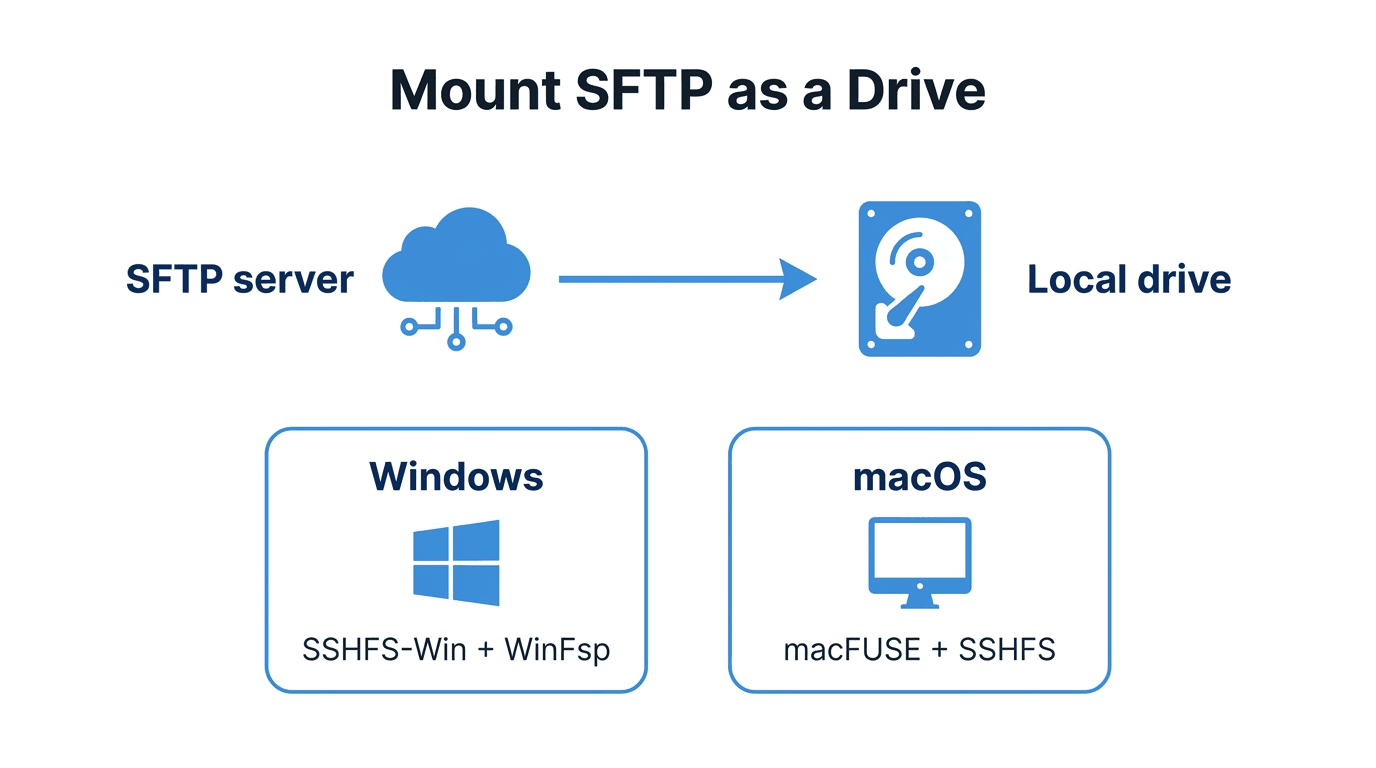
Mounting maps a remote location to a local path. The operating system presents it like a disk, and a background driver translates each file operation into SFTP commands over the wire. Open a file and it downloads on demand. Save it and it uploads. Browse a folder and the client lists the remote directory.
The important mental model: it is still a network connection wearing a filesystem costume. Latency is real, and a dropped connection means the "drive" stalls. That is fine for editing documents and config files. It is a poor fit for running a database off the mount or working with very large files. More on that below.
Mounting on Windows
Windows does not mount SFTP natively (it speaks SMB and WebDAV, not SSH), so you need a helper tool.
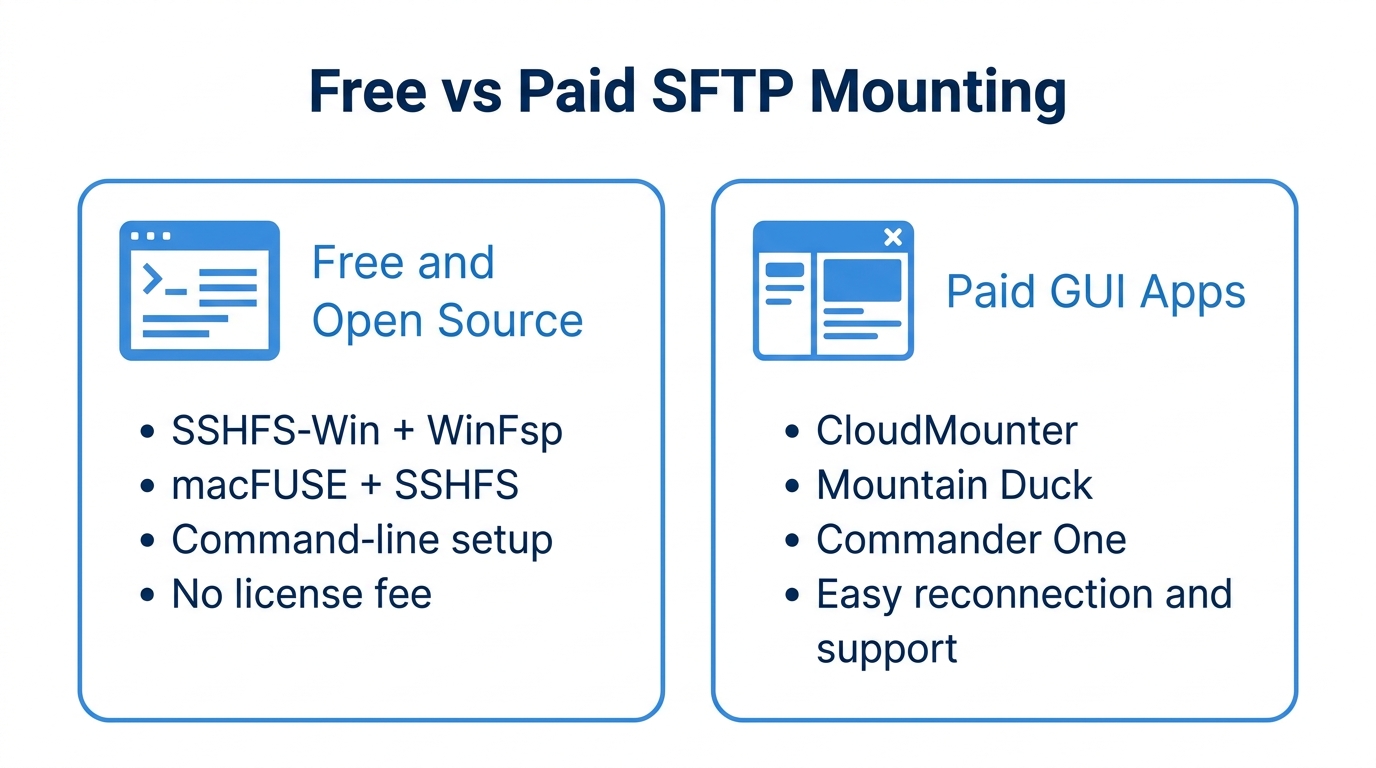
WinFsp + SSHFS-Win (free, open source) is the most popular free route. SSHFS-Win uses the SSH filesystem protocol to map a server to a drive letter. After installing WinFsp and SSHFS-Win, you map a network drive using a path in this form:
\\sshfs\user@sftp.example.com
You can also point it at a specific remote directory:
\\sshfs\user@sftp.example.com\uploads
Windows then prompts for your credentials and the server appears under "This PC" with a drive letter. For key-based auth, SSHFS-Win reads keys from your .ssh directory.
Commercial tools smooth over the setup. Apps in this category (for example CloudMounter and similar mounting utilities) give you a GUI to add servers, store credentials in the system keychain, and mount SFTP alongside cloud storage backends. You pay for convenience and support rather than capability. The free stack does the same core job.
Mounting on macOS
macFUSE + SSHFS (free, open source) is the classic Mac approach. You install macFUSE (the macOS filesystem-in-userspace layer) and the SSHFS tool, then mount from Terminal:
# Create a local mount point
mkdir ~/sftp-mount

# Mount the remote server onto it
sshfs user@sftp.example.com:/uploads ~/sftp-mount

# Unmount when done
umount ~/sftp-mount
The remote folder now appears at ~/sftp-mount and in Finder. Note that recent macOS versions tightened the rules around kernel extensions, so macFUSE may require approval in System Settings under Privacy and Security during install.
GUI apps like CloudMounter, Mountain Duck, and Commander One offer a friendlier path on the Mac. They mount SFTP servers as Finder volumes without touching Terminal, handle reconnection, and manage credentials for you. Again, the tradeoff is convenience and a license fee versus the free command-line stack.
Finder's "Connect to Server" is worth knowing about, but note the limitation: it supports smb://, ftp://, and afp://, not sftp://. So unlike GNOME on Linux, stock Finder cannot mount SFTP on its own. You need one of the tools above.
A note on Linux
Linux makes this easy, which is worth mentioning for mixed teams. The same sshfs command works:
sshfs user@sftp.example.com:/uploads ~/sftp-mount
And desktop file managers like GNOME Files and KDE Dolphin can connect to an sftp:// address directly through "Connect to Server," mounting it with no extra software at all.
When mounting is the wrong tool
Mounting is convenient, but it is a network filesystem, and that has limits:
- Large files and bulk transfers. Moving gigabytes is faster and more reliable through a real client with a transfer queue and resume support. A mount streams every byte on demand.
- Latency-sensitive work. Compiling code, running a database, or anything with thousands of tiny file operations will feel painfully slow over a mounted SFTP connection.
- Unstable networks. If your connection drops, open files on the mount can hang or error. Apps that assume local disk reliability may misbehave.
- Automation. For scheduled or scripted transfers, use the command line or a library, not a mounted drive. See Automating File Transfers with Cron and How to Automate SFTP File Transfers with Python.
Use mounting for interactive editing of reasonably sized files. Use a proper transfer workflow for everything heavy or automated.
Common pitfalls
- Expecting native support. Neither Windows Explorer nor macOS Finder mounts SFTP out of the box. You always need a helper (SSHFS, macFUSE, or a GUI app).
- macFUSE approval prompts. On modern macOS, the install can silently fail until you approve the system extension in Privacy and Security, then reboot.
- Confusing SFTP with FTP or SMB. "Connect to Server" dialogs often list FTP and SMB but not SFTP. Make sure you are using an SFTP-capable tool. See SFTP vs FTPS.
- Treating the mount as local disk. It is a network connection. Save often, and do not point latency-sensitive applications at it.
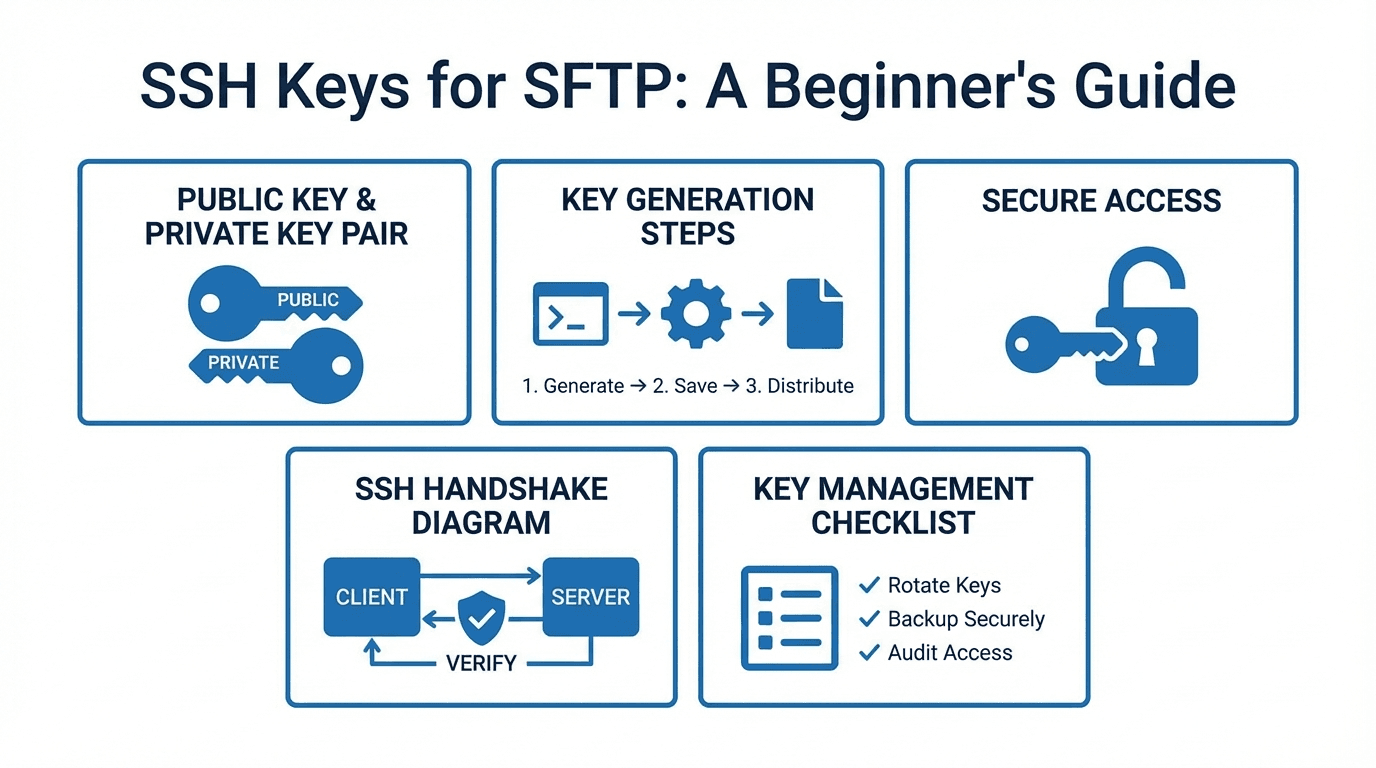
- Storing the host key carelessly. The first connection verifies the server fingerprint. Confirm it once rather than ignoring the prompt. See SFTP Security Best Practices.
How FilePulse fits
To mount anything, you need a reliable SFTP server on the other end. FilePulse provides exactly that: a managed cloud SFTP endpoint that any of these tools (SSHFS, macFUSE, CloudMounter, Mountain Duck) can mount as a drive, because it speaks standard SFTP. Your files live in cloud object storage, access is scoped per user with IP allowlists and audit logging, and there is no server for you to run or patch.
Next step: create an SFTP endpoint and mount it as a drive in minutes. Create a free FilePulse account.