Shopify is where the orders come in. Your ERP is where they get fulfilled, invoiced, and accounted for. Bridging the two sounds simple until you actually try it: the ERP team wants a flat file on an SFTP server every fifteen minutes, the Shopify team wants webhooks, and somewhere in the middle you need to make sure no order is processed twice and none silently disappear.
This guide walks through a production-grade pattern for syncing Shopify orders to an ERP (NetSuite, SAP, Microsoft Dynamics, Sage, or any platform that consumes file drops) over SFTP. We will cover the export side, the inbound side (inventory and fulfillment back to Shopify), and the operational concerns that decide whether your integration survives Black Friday.
Why SFTP, when Shopify has webhooks?
It is a fair question. Shopify offers webhooks, a GraphQL Admin API, and a growing list of integration apps. Why are so many retailers still pushing orders to their ERP as CSV files over SFTP?
A few reasons:
- The ERP only speaks files. Most enterprise ERPs were designed before REST was a thing. NetSuite has SuiteTalk and SuiteScript, SAP has IDOCs and BAPI, Dynamics has Data Management Framework. All of them happily ingest CSV or XML files dropped on an SFTP endpoint, and that is often the path of least resistance for the ERP team.
- Batch is fine for accounting. Orders need to be fulfilled within minutes, but they only need to be in the general ledger by end of day. A scheduled file drop matches the cadence the finance team actually wants.
- Audit and replay. A file on an SFTP server is a permanent, inspectable record. If accounting questions an invoice three months later, you can pull the exact CSV that produced it. Webhook payloads are harder to retain at that fidelity.
- Decoupling. A file-based handoff means an ERP outage does not block Shopify, and a Shopify hiccup does not corrupt the ERP. Each side reads and writes at its own pace.
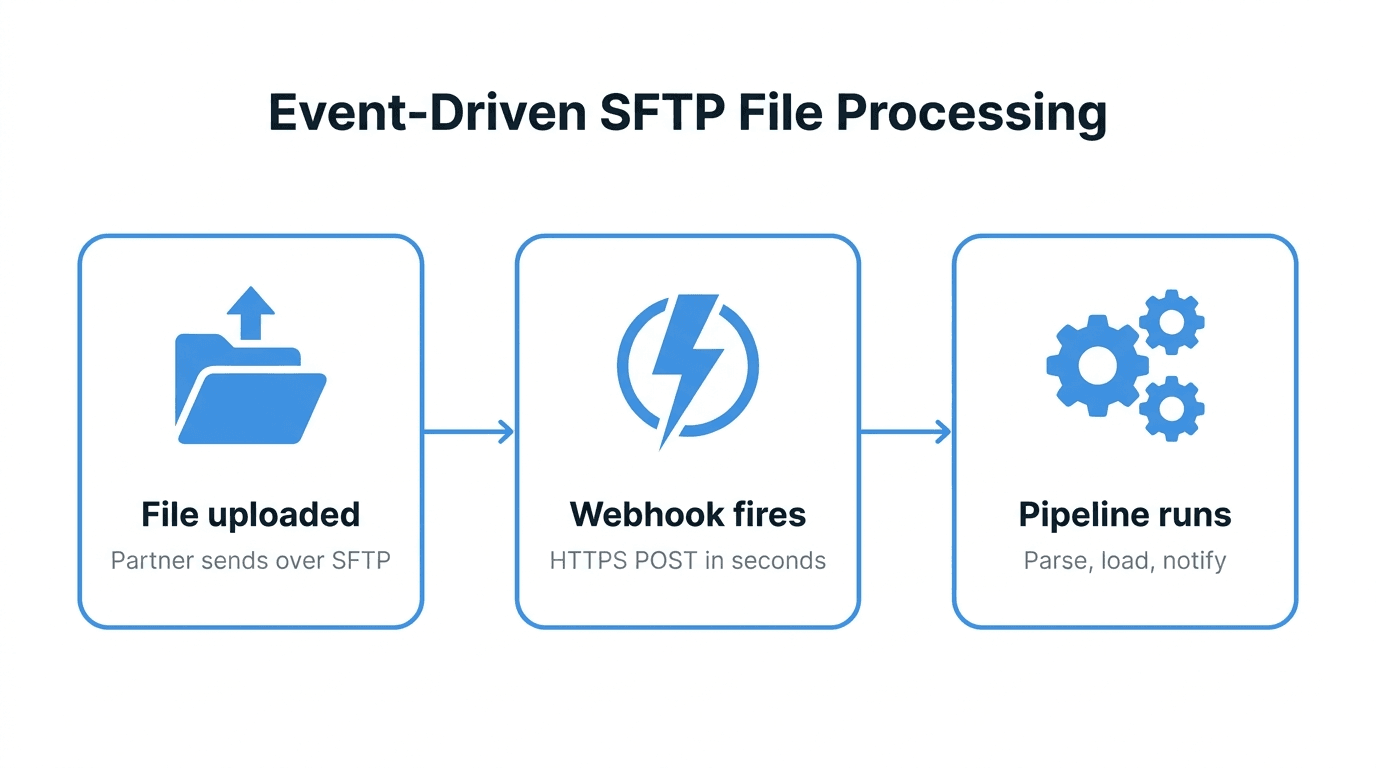
The pattern below uses webhooks for low-latency triggers but writes the actual integration contract as files. You get the responsiveness of events with the durability of file drops.
The order flow at a glance
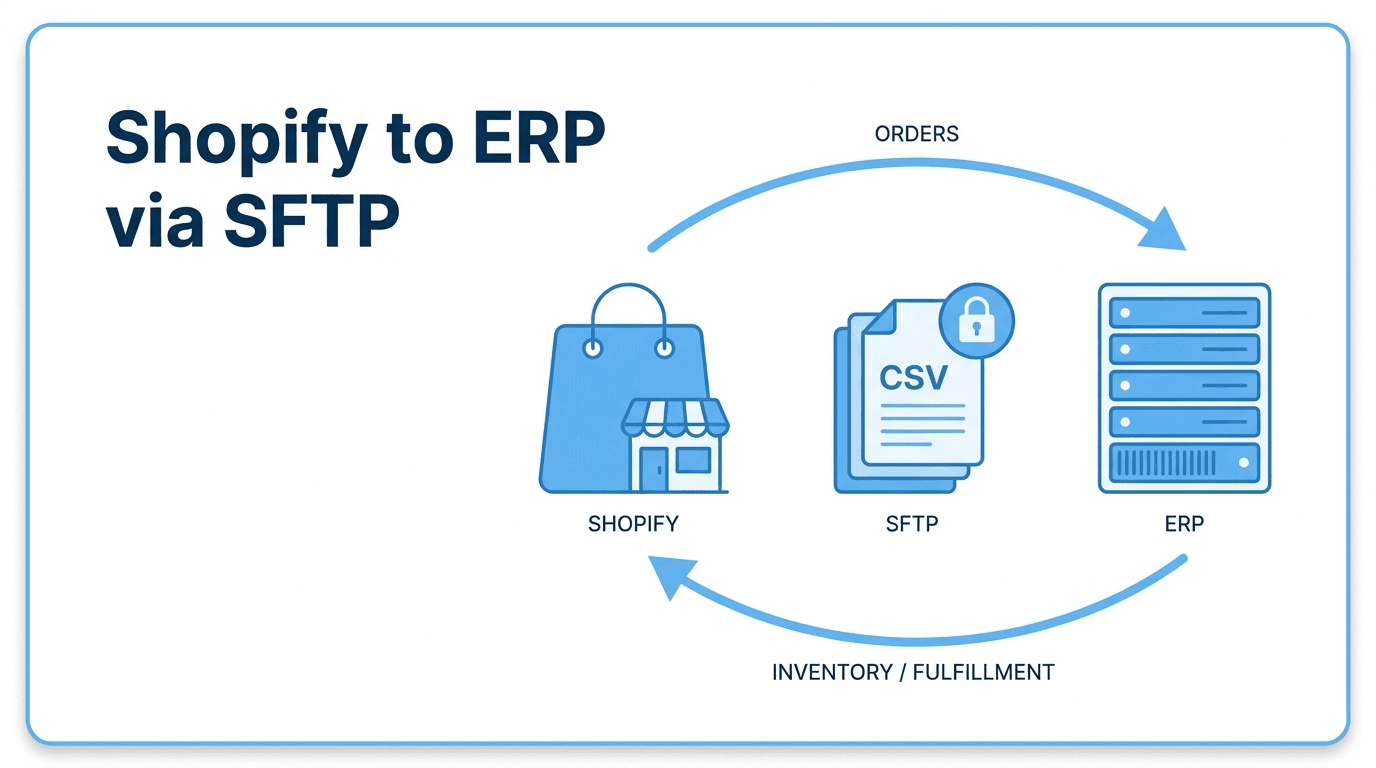
The integration has two directions:
- Outbound (Shopify to ERP): new and updated orders, customer records, refunds.
- Inbound (ERP to Shopify): inventory levels, fulfillments and tracking numbers, product updates.
A typical layout on the SFTP server:
/shopify/
  outbox/
    orders/      # orders pushed from Shopify, picked up by ERP
    customers/
    refunds/
  inbox/
    inventory/   # inventory updates from ERP, applied to Shopify
    fulfillments/
    products/
  archive/       # processed files moved here after success
Both sides read from one directory and write to another. Neither side ever modifies the other's directory. This keeps responsibilities clean.
Building the outbound export
We will use Node.js and the @shopify/shopify-api and ssh2-sftp-client libraries. Python with Paramiko works equally well; the patterns translate directly.
npm install @shopify/shopify-api ssh2-sftp-client csv-stringify
Step 1: Pull orders incrementally
The single most important rule of an order export is: do not re-export orders you have already exported. Shopify makes this easy with the updated_at_min filter. Track the timestamp of the last successful export and use it as the floor for the next run.
import { shopifyApi, ApiVersion } from "@shopify/shopify-api";
import fs from "fs/promises";

const shopify = shopifyApi({
  apiKey: process.env.SHOPIFY_API_KEY,
  apiSecretKey: process.env.SHOPIFY_API_SECRET,
  scopes: ["read_orders", "read_customers"],
  hostName: process.env.SHOPIFY_SHOP,
  apiVersion: ApiVersion.January26,
});

async function fetchOrdersSince(session, sinceIso) {
  const client = new shopify.clients.Rest({ session });
  const orders = [];
  let pageInfo = null;

  do {
    const response = await client.get({
      path: "orders",
      query: {
        status: "any",
        updated_at_min: sinceIso,
        limit: 250,
        ...(pageInfo ? { page_info: pageInfo } : {}),
      },
    });
    orders.push(...response.body.orders);
    pageInfo = response.pageInfo?.nextPage?.query?.page_info ?? null;
  } while (pageInfo);

  return orders;
}
Two things worth calling out:
- Use
updated_at_min, notcreated_at_min. Orders get edited (refunds, address changes, line item changes), and the ERP needs to see those updates. Filtering by update timestamp catches both new and modified orders in a single pass. - Persist the cursor only after success. If the SFTP push fails, the cursor stays where it was, and the next run reprocesses the same window. Never advance the cursor before you have confirmation that the file landed.
Step 2: Format the file the ERP expects
Every ERP has its own dialect. NetSuite wants one shape, SAP wants another, your finance team's spreadsheet probably wants a third. Whatever it is, lock the schema down in code so a Shopify field rename does not silently break invoicing.
import { stringify } from "csv-stringify/sync";

function toErpRow(order) {
  return {
    order_id: order.name,                 // e.g. "#1042"
    shopify_order_gid: order.admin_graphql_api_id,
    customer_email: order.email ?? "",
    placed_at: order.created_at,
    updated_at: order.updated_at,
    currency: order.currency,
    subtotal: order.subtotal_price,
    tax: order.total_tax,
    shipping: order.total_shipping_price_set?.shop_money?.amount ?? "0.00",
    total: order.total_price,
    financial_status: order.financial_status,
    fulfillment_status: order.fulfillment_status ?? "unfulfilled",
    line_items_json: JSON.stringify(
      order.line_items.map((li) => ({
        sku: li.sku,
        qty: li.quantity,
        unit_price: li.price,
      }))
    ),
  };
}

function buildCsv(orders) {
  const rows = orders.map(toErpRow);
  return stringify(rows, {
    header: true,
    quoted_string: true,
    record_delimiter: "\r\n",  // many ERPs choke on Unix line endings
  });
}
Two field choices that pay off later:
- Carry both the human-readable order name and the GraphQL ID. Finance reconciles by
#1042. Engineers debug by GID. Including both in every row removes a class of support tickets. - Keep line items as a JSON column rather than exploding to one row per item. Most ERPs have a separate import job for line items anyway; bundling them means the order file stays one row per order, which makes the ERP-side dedup logic trivial.
Step 3: Push to SFTP atomically
The classic mistake is to upload orders-2026-04-26.csv directly. The ERP's pickup job sees a half-written file, ingests it, and you have a partial day in your books. Always upload to a temp name and rename only after the upload completes.
import SftpClient from "ssh2-sftp-client";
import { createHash } from "crypto";

async function pushOrderFile(csv, isoStamp) {
  const sftp = new SftpClient();
  await sftp.connect({
    host: process.env.SFTP_HOST,
    username: process.env.SFTP_USER,
    privateKey: await fs.readFile(process.env.SFTP_KEY_PATH),
  });

  const finalName = `orders-${isoStamp}.csv`;
  const tempName = `${finalName}.part`;
  const remoteDir = "/shopify/outbox/orders";

  try {
    await sftp.put(Buffer.from(csv, "utf8"), `${remoteDir}/${tempName}`);
    await sftp.rename(`${remoteDir}/${tempName}`, `${remoteDir}/${finalName}`);

    // Optional: write a sidecar checksum for the ERP to verify
    const sha = createHash("sha256").update(csv).digest("hex");
    await sftp.put(Buffer.from(sha, "utf8"), `${remoteDir}/${finalName}.sha256`);
  } finally {
    await sftp.end();
  }
}
The atomic rename is the contract: if orders-2026-04-26T14-00-00Z.csv is visible, it is complete. If you see .part, leave it alone. Make sure the ERP's pickup job filters on the final extension only.
Step 4: Wire it up
Pull the cursor, fetch orders, build the CSV, push it, advance the cursor.
const CURSOR_FILE = "/var/state/shopify-order-cursor.txt";

async function run() {
  const since = await fs.readFile(CURSOR_FILE, "utf8")
    .catch(() => new Date(Date.now() - 24 * 3600 * 1000).toISOString());

  const session = /* load offline session for the shop */;
  const orders = await fetchOrdersSince(session, since.trim());

  if (orders.length === 0) {
    console.log("No new orders");
    return;
  }

  const stamp = new Date().toISOString().replace(/[:.]/g, "-");
  const csv = buildCsv(orders);
  await pushOrderFile(csv, stamp);

  const newest = orders.reduce(
    (max, o) => (o.updated_at > max ? o.updated_at : max),
    since
  );
  await fs.writeFile(CURSOR_FILE, newest);
  console.log(`Pushed ${orders.length} orders, cursor advanced to ${newest}`);
}

run().catch((err) => {
  console.error(err);
  process.exit(1);
});
Schedule with cron (every fifteen minutes is a sensible starting point):
*/15 * * * * /usr/bin/node /opt/shopify-erp-sync/export.mjs >> /var/log/shopify-erp.log 2>&1
The inbound flow: ERP back to Shopify
The reverse direction is just as important. Your ERP is the source of truth for inventory and for fulfillment, and Shopify needs both promptly.
Inventory updates
The ERP drops a file like inventory-2026-04-26T15-00-00Z.csv into /shopify/inbox/inventory/. Your sync job picks it up, parses it, and posts updates to Shopify's Inventory API.
async function applyInventory(client, rows) {
  for (const row of rows) {
    await client.post({
      path: "inventory_levels/set",
      data: {
        location_id: Number(row.location_id),
        inventory_item_id: Number(row.inventory_item_id),
        available: Number(row.available),
      },
    });
  }
}
Two operational notes:
- Process the oldest file first. If the ERP drops three inventory files in a row and you process them out of order, you will set inventory to a stale value. Sort by filename timestamp before applying.
- Move processed files to
archive/. Do not delete them. If a SKU's inventory looks wrong, you will want the file that produced the value.
Fulfillments and tracking
When the warehouse ships an order, the ERP writes a fulfillment file with the shipping carrier, tracking number, and the line items shipped. Your job creates a Shopify Fulfillment, which triggers the shipping confirmation email to the customer.
This is the flow most worth getting right. A delayed shipping email is a customer support ticket; a wrong tracking number is a refund.
Reliability concerns that decide the integration
A working happy path is the easy part. These are the issues that show up in production.
Idempotency
The ERP must be able to ingest the same order file twice without double-counting. Two patterns work:
- Upsert by order ID on the ERP side. Every row carries
order_id; the import job updates if it exists, inserts if it does not. - Dedup table. The ERP keeps a small table of
(order_id, exported_updated_at)pairs and skips rows it has already processed.
We covered the cursor-only-after-success pattern above. Combined with ERP-side upsert, a duplicate file is a non-event.
Cursor recovery
Cursor files get corrupted, machines get rebuilt, and someone always asks "can you reprocess yesterday?" Build in a manual override:
const since = process.env.SYNC_SINCE
  ?? await fs.readFile(CURSOR_FILE, "utf8").catch(() => defaultSince);
Now SYNC_SINCE=2026-04-25T00:00:00Z node export.mjs reprocesses a day. Combined with idempotent ingestion, replays are safe.
Backpressure during peak
On Black Friday, fifteen-minute windows can produce thousands of orders. A few defensive moves:
- Cap the file size. If a window has more than 10,000 orders, split into multiple sequenced files (
orders-2026-11-27T14-00-00Z-001.csv,-002, etc.). - Respect Shopify rate limits. The Admin API has bucket-based throttling; the SDK exposes the bucket header, so back off when you are above 80% utilization rather than getting hard-rejected.
- Monitor lag, not just success. A green run that processed zero orders during peak hour means the cursor is stuck or the API call silently capped.
Failure visibility
The worst failure mode for a file integration is silent. The cron job exits 0, the file is empty, nobody notices for two days. Two cheap safeguards:
- Heartbeat. Even a no-op run writes
heartbeat-2026-04-26T14-00-00Zto a watched directory. An alert fires if the file does not appear on schedule. - Volume alarms. If yesterday had 4,200 orders and today is on track for 200 by 6pm, page someone.
Security
The order file contains customer email, address, and order totals. The inventory file is less sensitive but still proprietary. Treat the integration like any other production data path:
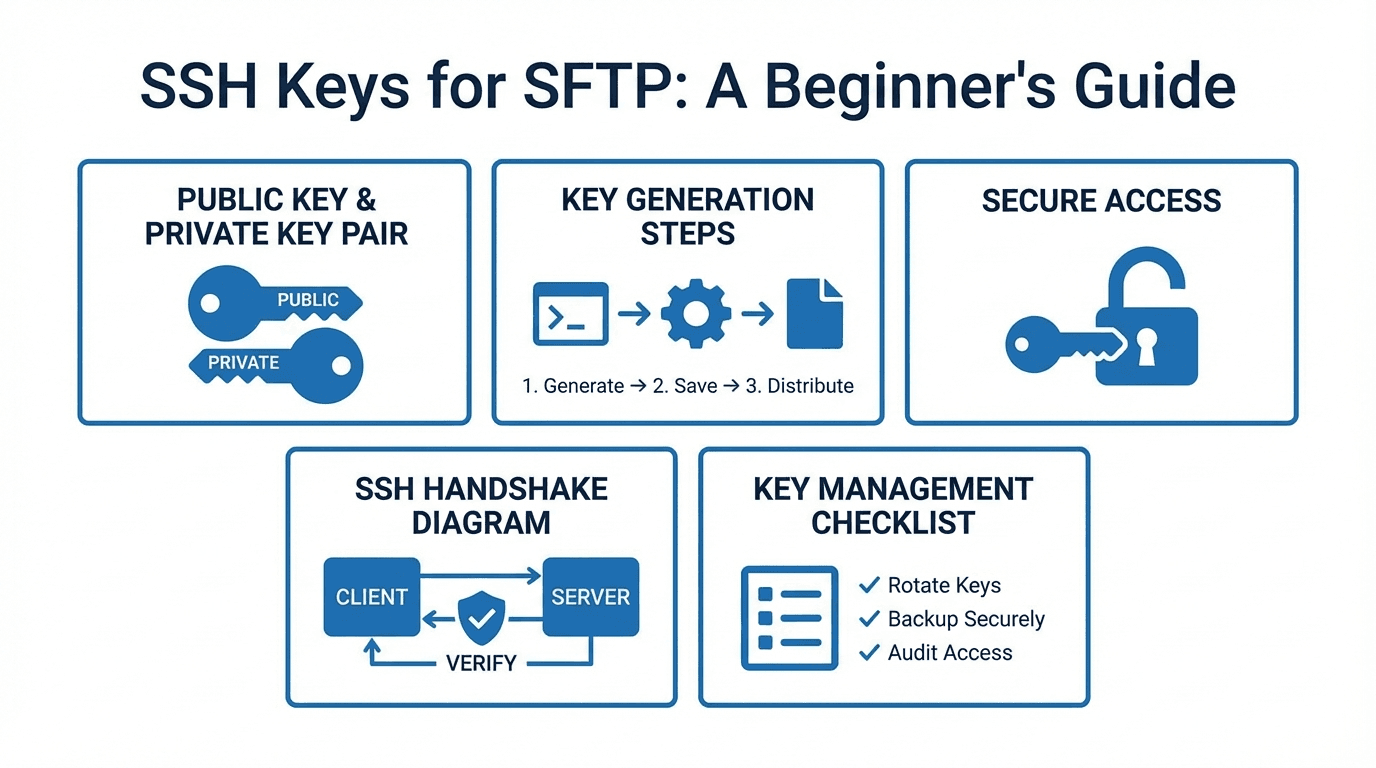
- Use SSH key authentication, not passwords. Rotate keys at least annually. See our SSH keys for SFTP guide for the basics.
- Restrict by IP. Lock the SFTP server down to the egress IPs of the integration host and the ERP. See using IP allowlists to secure your SFTP server.
- Separate accounts per direction. The Shopify-side service account writes to
outbox/and reads frominbox/; the ERP-side account does the reverse. Neither needs broader access. - Audit log everything. You want to know who connected, what they uploaded, and what they downloaded. See audit logging for file transfers.
- Encrypt sensitive fields at the application layer. Even with TLS in transit and encryption at rest, customer PII benefits from per-field encryption if you can swing it.
When to graduate from a script
The script above will run a small or mid-sized merchant for years. There comes a point, though, where the operational surface gets heavy: monitoring, alerting, key rotation, partner onboarding for additional 3PLs and marketplaces, compliance reports for the next SOC 2 audit. At that point a managed file transfer platform pays for itself by removing a category of work rather than a single integration.
FilePulse gives you the SFTP endpoint, virtual filesystem, audit logs, IP allowlists, webhook notifications, and per-partner isolation as platform features rather than code you maintain. Your Shopify-to-ERP script keeps doing the part that is genuinely your business logic; everything around it becomes configuration.
Ready to take the operational load off your order sync? Start a free trial of FilePulse or get in touch with our team to talk through your integration.