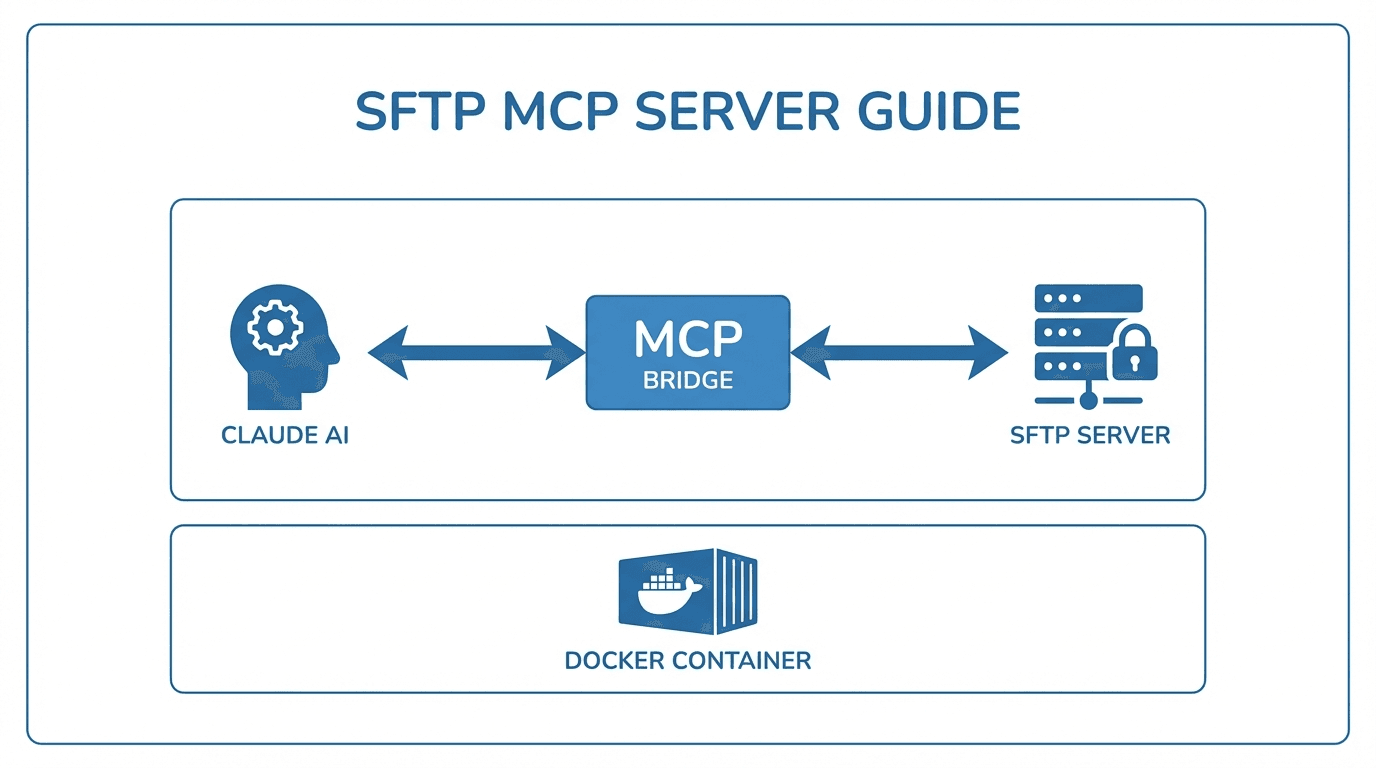
The Model Context Protocol (MCP) is an open standard that allows AI assistants to interact with external tools and data sources. The SFTP MCP Server lets AI assistants like Claude connect to your SFTP server, enabling them to browse directories, read files, and perform file operations through natural language.
This tutorial walks you through setting up the SFTP MCP Server using Docker and configuring Claude Desktop to use it.
What is MCP?
MCP (Model Context Protocol) provides a standardized way for AI assistants to access external systems. Instead of copying and pasting file contents into a chat window, MCP lets the assistant connect directly to your SFTP server and work with files in context.
This is useful for tasks like reviewing configuration files, analyzing logs, or working with data stored on a remote server, all without leaving the conversation.
Prerequisites
Before you begin, make sure you have:
- Docker installed and running on your machine. You can download it from docker.com.
- Claude Desktop installed (available from claude.ai).
- SFTP server credentials (hostname, username, and either a password or SSH private key).
Step 1: Clone the repository
Clone the SFTP MCP Server repository to your local machine:
git clone https://github.com/FilePulse/sftp-mcp-server.git
cd sftp-mcp-server
Step 2: Build the Docker container
Build the Docker image from the repository:
docker build -t sftp-mcp-server .
This creates a container image with all the dependencies needed to run the MCP server.
Step 3: Configure Claude Desktop
To connect Claude Desktop to the SFTP MCP Server, you need to update the Claude Desktop configuration file.
Configuration file location
- macOS:
~/Library/Application Support/Claude/claude_desktop_config.json - Windows:
%APPDATA%\Claude\claude_desktop_config.json
Open the configuration file in a text editor and add the SFTP MCP Server to the mcpServers section.
Configuration with password authentication
{
  "mcpServers": {
    "sftp": {
      "command": "docker",
      "args": [
        "run",
        "-i",
        "--rm",
        "sftp-mcp-server"
      ],
      "env": {
        "SFTP_HOST": "your-sftp-server.example.com",
        "SFTP_PORT": "22",
        "SFTP_USERNAME": "your-username",
        "SFTP_PASSWORD": "your-password"
      }
    }
  }
}
Configuration with SSH key authentication
If you use an SSH private key instead of a password, mount the key file into the container and reference it in the environment variables:
{
  "mcpServers": {
    "sftp": {
      "command": "docker",
      "args": [
        "run",
        "-i",
        "--rm",
        "-v",
        "/path/to/your/private-key:/keys/id_rsa:ro",
        "sftp-mcp-server"
      ],
      "env": {
        "SFTP_HOST": "your-sftp-server.example.com",
        "SFTP_PORT": "22",
        "SFTP_USERNAME": "your-username",
        "SFTP_KEY_PATH": "/keys/id_rsa"
      }
    }
  }
}
Replace /path/to/your/private-key with the actual path to your SSH private key on your local machine.
Step 4: Restart Claude Desktop
After saving the configuration file, restart Claude Desktop. The SFTP MCP Server should now appear in the list of available tools.
Step 5: Test it out
Open a new conversation in Claude Desktop and try a simple command like:
"List the files in the root directory of my SFTP server."
Claude should use the SFTP MCP Server to connect to your server and return the directory listing. From there, you can ask it to read specific files, navigate directories, or help you work with the data on your server.
Troubleshooting
- Docker not running - Make sure Docker Desktop is started before launching Claude Desktop.
- Connection refused - Verify your SFTP hostname, port, and credentials. Test them manually using a standard SFTP client to confirm they work.
- Permission denied - If using SSH key authentication, ensure the key file has the correct permissions (
chmod 600on macOS and Linux) and that the mount path in the Docker configuration is correct. - Server not appearing in Claude - Double-check the JSON syntax in your configuration file. A missing comma or bracket can prevent Claude Desktop from loading the server.
Next steps
Once the SFTP MCP Server is running, you can use Claude to help with file management tasks, log analysis, configuration reviews, and more, all through natural conversation.
Want a managed SFTP server to connect to? Sign up for FilePulse or contact us to get started.