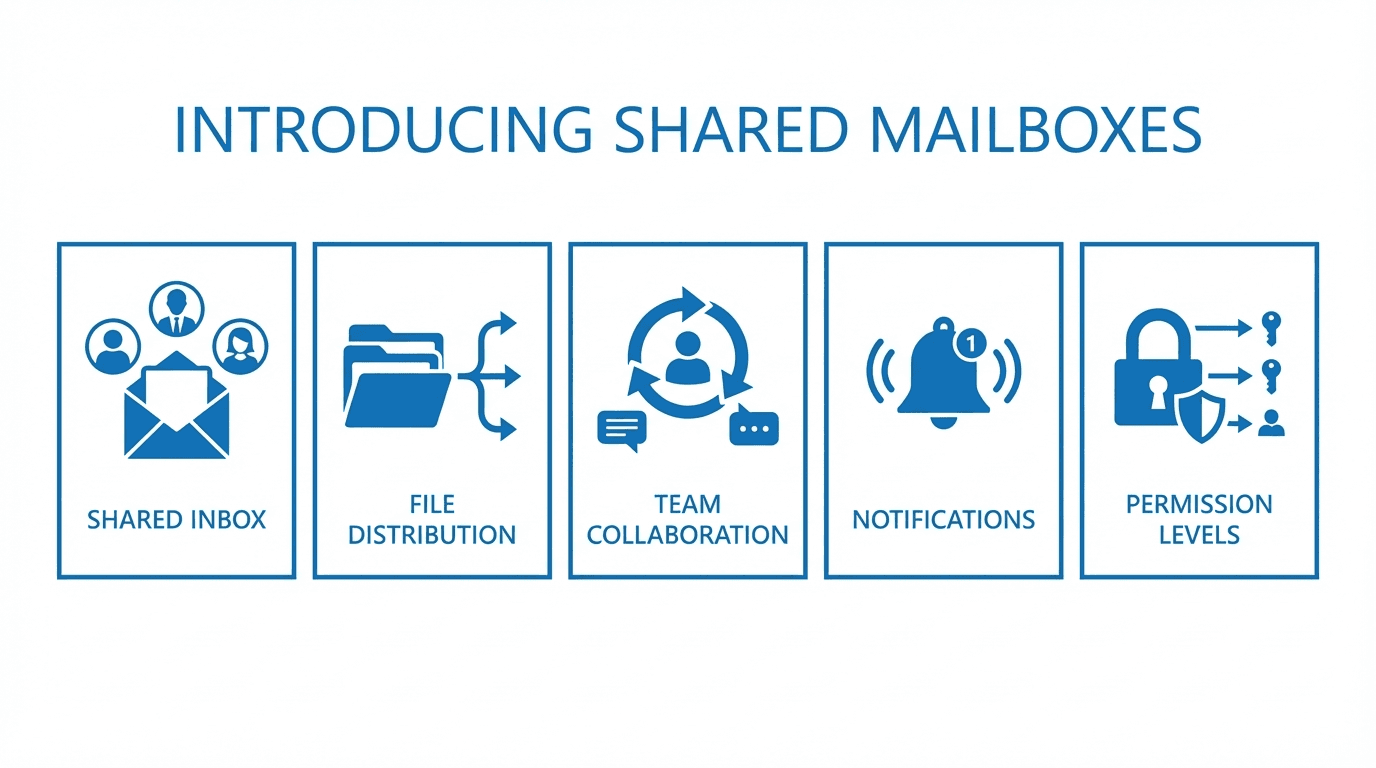
Managing incoming files from multiple partners often leads to cluttered directories, manual sorting, and unclear ownership. When several partners drop files into the same SFTP folder, someone on your team has to figure out which files belong to which workflow and move them to the right place. This manual process is error-prone and does not scale.
FilePulse's Shared Mailboxes solve this problem by giving you a single, shared file receiving endpoint with automatic routing built in.
What Are Shared Mailboxes?
A Shared Mailbox in FilePulse is a named endpoint where partners or internal systems can deposit files. Instead of giving every partner their own directory and managing the routing yourself, you configure a Shared Mailbox with rules that automatically sort and route incoming files to the correct destination.
Think of it like an email inbox, but for files. Files arrive at a shared address, and rules determine where they go next.
How Shared Mailboxes Work
The workflow is straightforward:
- A partner uploads a file to the Shared Mailbox endpoint over SFTP or HTTPS.
- FilePulse receives the file and evaluates it against your configured routing rules.
- Rules determine the destination. Based on criteria like filename patterns, file extensions, partner identity, or upload directory, the file is routed to the appropriate storage location or workflow.
- The file is delivered to its destination, and an audit log entry is created.
All of this happens automatically, with no manual intervention required.
Setting Up a Shared Mailbox
Creating a Shared Mailbox in FilePulse takes just a few steps:
Navigate to Mailboxes
In the FilePulse dashboard, go to the Mailboxes section. Click "Create Mailbox" to start.
Configure the Basics
Give your mailbox a descriptive name, like "Partner Invoices" or "Daily Reports." Set the source directory where incoming files will land.
Set Routing Rules
Define rules that determine how files are handled. You can route based on:
- Filename patterns. Files matching
invoice_*.csvgo to your accounting storage. Files matchingreport_*.pdfgo to your analytics pipeline. - File extension. Route
.csvfiles to one destination and.xmlfiles to another. - Partner identity. Files from Partner A go to one location, files from Partner B to another.
- Time-based rules. Route files differently based on when they arrive.
Configure Duplicate Policy
Choose how the mailbox handles duplicate filenames:
- Overwrite the existing file with the new one
- Reject the duplicate and notify the sender
- Rename the new file automatically by appending a timestamp or sequence number
This prevents accidental data loss from files with identical names.
Activate the Mailbox
Once configured, activate the mailbox and share the endpoint details with your partners.
Use Cases
Partner File Drops
The most common use case is centralizing partner file drops. Instead of managing separate directories for each partner and writing scripts to sort incoming files, set up a Shared Mailbox and let the routing rules handle the organization.
For example, a logistics company receiving shipment manifests from multiple carriers can create a single "Shipment Data" mailbox. Routing rules sort files by carrier based on filename conventions, and each carrier's files are automatically delivered to the correct processing pipeline.
Department Inboxes
Internal teams can use Shared Mailboxes as file drop points. A finance department mailbox might accept expense reports, invoices, and purchase orders from across the organization. Routing rules sort these documents by type and route them to the appropriate approval workflow.
Automated Data Collection
For organizations that collect data files on a regular schedule, such as daily sales reports from retail locations or hourly sensor data from IoT devices, a Shared Mailbox provides a reliable collection point with automatic organization.
Multi-Source Aggregation
When the same type of file arrives from multiple sources, a Shared Mailbox consolidates them into a single workflow. For example, if you receive inventory updates from five different warehouses, all of them can upload to the same mailbox. Routing rules ensure each file reaches the correct processing system while maintaining a unified audit trail.
Benefits
Simplified partner communication. Share one endpoint with all partners instead of managing individual connection details for each.
Reduced manual effort. Automatic routing eliminates the need for manual file sorting and movement.
Consistent processing. Rules ensure files are always handled the same way, reducing human error.
Complete audit trail. Every file that passes through a Shared Mailbox is logged, providing visibility into what arrived, when, and where it was routed.
Scalability. Adding new partners or file types is a matter of updating routing rules, not provisioning new infrastructure.
Getting Started
Shared Mailboxes are available on all FilePulse plans. To start using them:
- Log in to your FilePulse dashboard
- Navigate to the Mailboxes section
- Create your first mailbox and configure routing rules
- Share the endpoint with your partners
If you do not have a FilePulse account yet, sign up for a free trial to try Shared Mailboxes and the rest of the platform. Have questions? Contact our team and we will help you set up the right configuration for your workflow.